
Connecting Power BI to SharePoint files can save hours of manual data handling — especially for teams who store reports, exports, or budget workbooks in Microsoft 365. However, one error continues to frustrate many professionals:
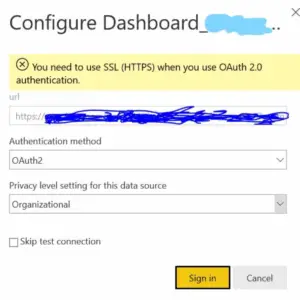
“You need to use SSL (HTTPS) when you use OAuth 2.0 authentication.”
If you’ve seen this message, you’re not alone. It’s one of the most common Power BI SharePoint connection errors. In this guide, we’ll explain why it happens, how to fix it, and how to connect your SharePoint data properly so your Power BI reports refresh reliably every time.
Why Connect SharePoint and Power BI?
Many organisations use SharePoint to centralise business data — from exported Xero accounting reports to operational spreadsheets and CRM extracts. Connecting these files directly to Power BI allows you to create live dashboards without repetitive downloads or version confusion.
But the connection only works smoothly if Power BI recognises the source as secure (HTTPS) and properly authenticated through OAuth 2.0. Otherwise, the service blocks access to protect your data.
How to Use a File from SharePoint as a Power BI Data Source?
Setting up the connection correctly from the start prevents most errors.
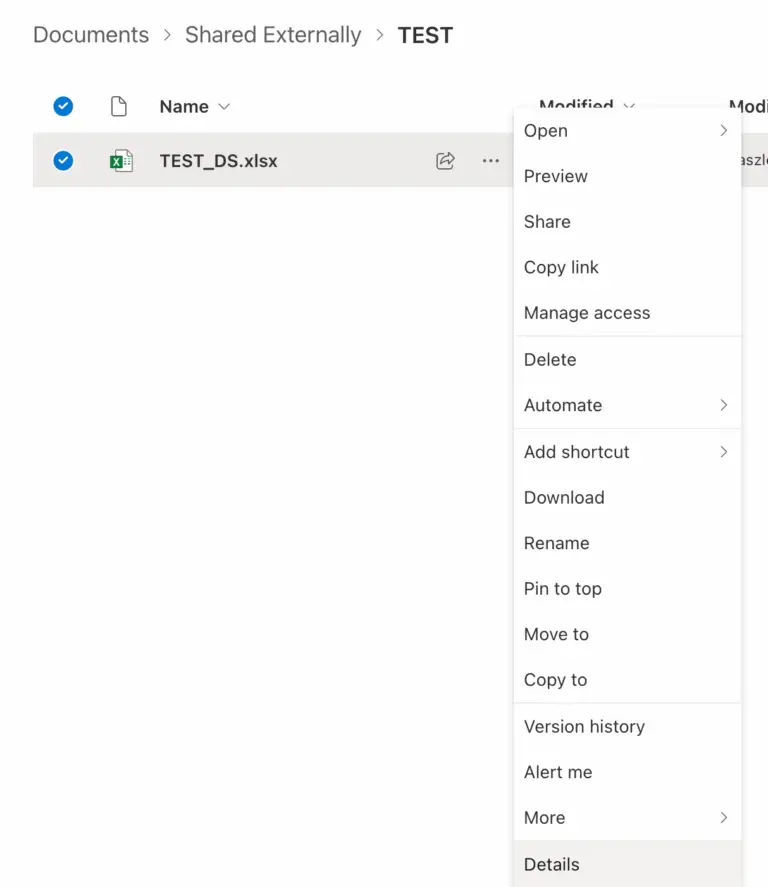
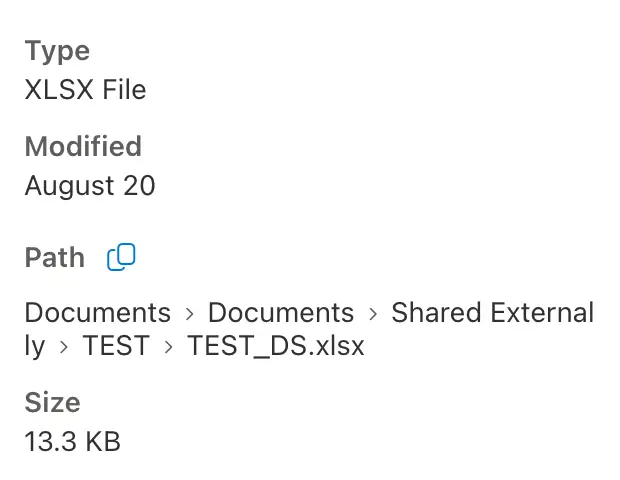
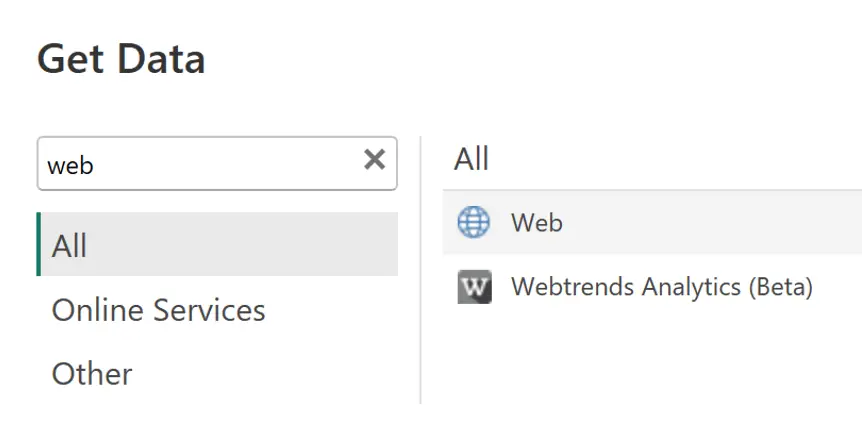
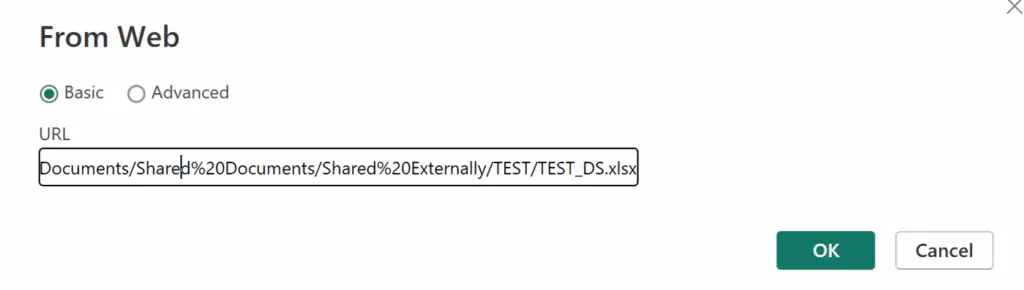
In Power BI Desktop, select Get Data → Web and paste the direct file path of your document, not the generic folder link.
For example, if your file is here:
https://yourcompany.sharepoint.com/sites/Finance/Shared Documents/Report2025.xlsx
Power BI needs this full, secure HTTPS path. Then, choose Organisational Account when prompted for credentials and sign in with your Microsoft 365 credentials.
If successful, you’ll see your Excel tables or sheets listed to load into your model. But if your dataset refresh fails later in the Power BI Service, it’s likely related to the SSL authentication error below.
Understanding the Power BI “Use SSL (HTTPS)” OAuth 2.0 Error
The error message
“You need to use SSL (HTTPS) when you use OAuth 2.0 authentication”
appears when Power BI detects an insecure or misconfigured link to SharePoint.
Even if your browser shows https://, the issue might come from using a shared link or the SharePoint web view URL instead of the file’s direct download path. When Power BI tries to refresh the dataset in the cloud, it refuses the connection because it can’t validate OAuth 2.0 through a non-secure endpoint.
This is not a Power BI bug — it’s a security measure to ensure your corporate data is encrypted end-to-end.
Step-by-Step: How to Fix the Power BI SharePoint SSL Error
1. Check your data source URL
Go to Power Query Editor → Data Source Settings → Change Source and confirm your link starts with https:// and points directly to your SharePoint file.
2. Use the SharePoint Folder connector
Instead of “Web” as your connector type, choose Get Data → SharePoint Folder. This method uses Microsoft’s secure integration and automatically handles OAuth authentication.
3. Re-authenticate in the Power BI Service
After publishing your report, open the dataset settings in Power BI online. Under Data Source Credentials, ensure the method is OAuth2 and re-sign in with your Microsoft 365 account. Make sure your browser allows pop-up windows from powerbi.com
4. Test your refresh
Trigger a manual refresh to confirm that Power BI can access and update your SharePoint file securely.
Once configured correctly, your scheduled refreshes will run automatically without further intervention.
Best Practices for Power BI + SharePoint Connections
Use HTTPS file paths consistently across all datasets and maintain a clear SharePoint folder structure. Avoid personal “shared links,” as they can break when tokens expire or file owners change.
If your team relies on SharePoint to store exported accounting data from Xero or CRM files from HubSpot, standardising these paths will prevent refresh failures and keep your Power BI dashboards stable.
For organisations managing multiple data sources, Connectorly.io provides a simpler, more reliable way to connect Xero, HubSpot, and other SaaS platforms directly — without worrying about file links or SharePoint permissions.
Beyond File Connections: Building Reliable Reports
Once your SharePoint connection is stable, the next challenge is data modelling and report optimisation.
Connectorly’s Power BI integrations give you pre-built data models and templates for faster reporting, whether you’re analysing Xero financials or HubSpot sales pipelines.
If you’re still building your Power BI foundation, read Power BI Desktop Tips for Beginners.
You can also explore Connect Xero to Power BI in Minutes or Connect HubSpot to Power BI to streamline your data sources further.
Conclusion
The “Use SSL (HTTPS)” message in Power BI isn’t just a technical nuisance — it’s a reminder that secure data handling matters. By connecting through HTTPS, using OAuth 2.0 authentication, and following Microsoft’s recommended SharePoint connector, your Power BI dashboards will refresh dependably and stay compliant with enterprise security standards.
For those managing complex reporting environments, Connectorly.io offers purpose-built integrations that go beyond file-based connections — enabling you to work confidently with live, trusted data from the systems you use every day.
FAQs
Why Connect SharePoint and Power BI?
Use SharePoint to centralise business data — from exported Xero accounting reports to operational spreadsheets and CRM extracts. Connecting these files directly to Power BI allows you to create live dashboards without repetitive downloads or version confusion.
Can I combine SharePoint files with other datasources?
Yes, you can.
If you manage your budgets in Xero, you can easily include that file in your Connectorly for Xero & Power BI database and build reports that combine your Xero data with the information stored in your SharePoint file.