

Why JSON shows up in HubSpot data
HubSpot is incredibly flexible. You can create custom properties on almost anything—Companies, Contacts, Deals, Services, Quotes, and Tickets. That flexibility is powerful, but it comes with a reporting challenge:
Every HubSpot portal is different.
One customer might track Industry Score and Partner Tier, another might care about Contract Length or Onboarding Status. There’s no single, universal schema.
How Connectorly handles this
Instead of guessing which custom fields you might need, Connectorly collects all HubSpot custom properties into a single JSON field called Custom Properties in the following tables:
- HubSpot Companies
- HubSpot Contacts
- HubSpot Deals
- HubSpot Services
- HubSpot Quotes
- HubSpot Tickets
This way:
- You get everything HubSpot allows
- You decide which properties matter for reporting
- Your model stays clean and future-proof
And the best part? Power BI is really good at expanding JSON.
Expanding custom properties is one part of a wider reporting model. For guidance on structuring HubSpot tables, defining KPIs and building reliable dashboards, see our complete guide to HubSpot reporting in Power BI.
What is JSON (very quickly)
JSON (JavaScript Object Notation) is a structured text format used to store key–value pairs, for example:
{
“industry_score”: 8,
“partner_tier”: “Gold”,
“contract_length_months”: 12
}
Power BI can read this and turn it into real columns.
Step-by-step: Expanding JSON in Power BI Desktop
- Open Power Query
- Open Power BI Desktop
- Go to Transform data
- Select a HubSpot table (e.g. HubSpot Deals)
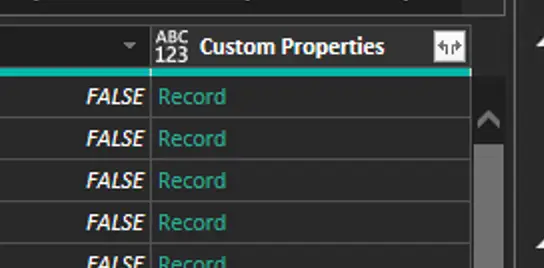
You’ll see a column called Custom Properties.

- Convert JSON text to a record
If the column type is Text:
- Select Custom Properties
- Go to Transform → Parse → JSON
Power BI converts the text into a Record.
- Expand the record
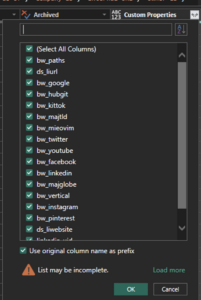
- Click the expand (⤢) icon on the column header
- You’ll see a list of all available custom properties
- Select only the fields you actually need for reporting
💡 Tip: You don’t have to expand everything. Keep your model lean.
- Rename and clean up
- Rename columns to business-friendly names
- Set correct data types (Whole Number, Date, Text, etc.)
Now those custom properties behave like native HubSpot fields.
You can then use these properties for company segmentation, contact analysis and CRM data-quality checks. For a complete example, see our guide to building a HubSpot contacts and companies dashboard in Power BI.
Why this approach scales
Because Connectorly keeps custom properties in JSON:
- ✅ New HubSpot properties appear automatically
- ✅ No connector changes required
- ✅ No broken refreshes
- ✅ You control the reporting layer
If your sales team adds a new custom field tomorrow, you can simply expand it in Power BI.
This is not HubSpot-specific
This technique works for any JSON field in Power BI, regardless of the source:
- CRMs (HubSpot, Dynamics 365, Salesforce)
- Helpdesk tools
- APIs
- Webhooks
- Custom databases
If your data source stores flexible attributes as JSON, Power BI can flatten it.
Why Connectorly chose this design
We deliberately avoided hard-coding HubSpot custom fields because:
- Every HubSpot account is unique
- Custom properties change over time
- Reporting needs evolve
By exposing custom properties as JSON, Connectorly gives you flexibility without sacrificing performance or reliability.
👉 Learn more about Connectorly for HubSpot & Power BI on our website.
👉 Start with our free templates.