Creating Power BI reports is one thing. Making sure the right people can access them—securely, consistently, and without version-control headaches—is something else entirely. As organisations scale their reporting across finance, operations, sales, and customer success, many teams reach a point where managing individual workspaces becomes inefficient. This is where Power BI Apps provide a cleaner, more professional approach to distributing analytics across the business.
If you’re working with multiple datasets from systems like Xero, HubSpot, Datto RMM, or Microsoft 365, using Apps is often the most reliable way to ensure stakeholders always see the right reports, the right structure, and the latest version. In this article, we walk through why Apps matter, when to use them, and the practical steps to get them working smoothly.
What Is a Power BI App and When Should You Use One?
A Power BI App is a packaged, read-only version of a workspace that you publish to your organisation. It contains dashboards, reports, and datasets, but your audience doesn’t see the underlying workspace or any draft content. Instead, they get a clean, curated experience that’s easier to navigate and harder to break.
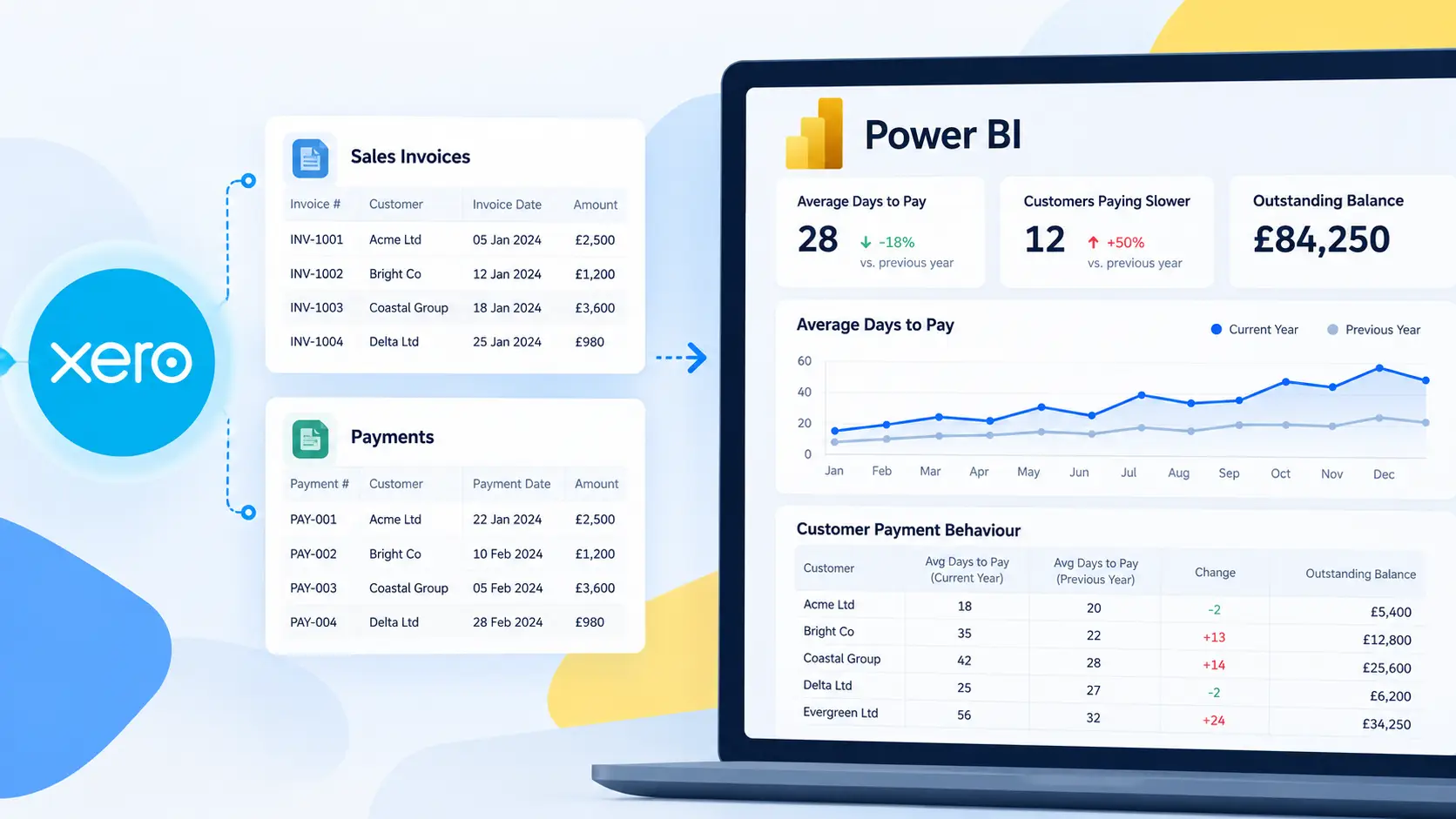
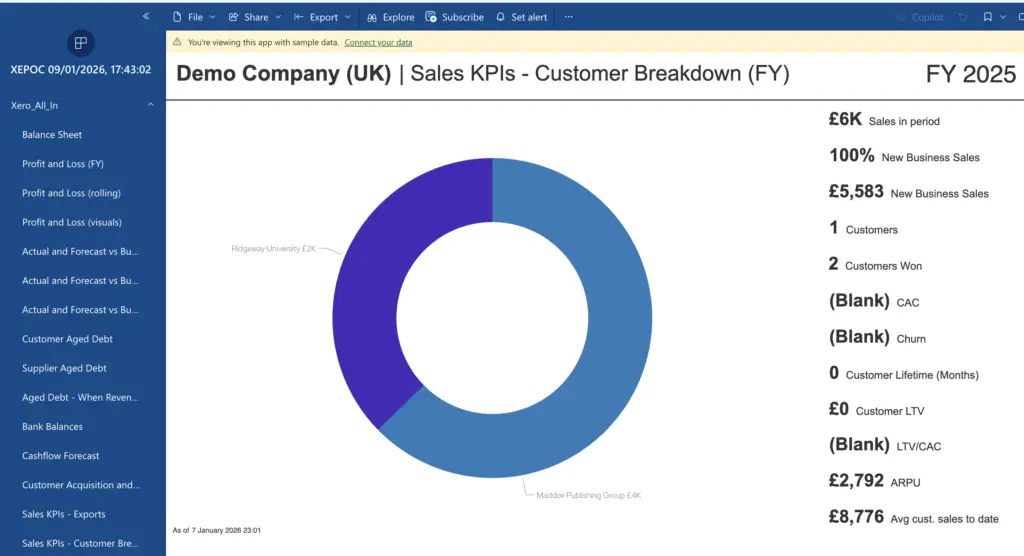
Teams typically use Apps when sharing reporting across departments or with senior leadership. For example, if you’ve built a Xero financial reporting suite using Connectorly, you may have a P&L dashboard, a balance sheet, a cashflow report, and debtor summaries. Publishing these separately can be confusing for end-users, especially those who only need the end result. By creating an App, you deliver everything in one structured location with permissions defined in one place.
Apps are particularly helpful for organisations with multiple Power BI workspaces that support different data sources. Instead of asking stakeholders to jump between financials, CRM metrics, and operational KPIs, Apps help centralise the user experience.
Why Apps Make Reporting Easier for Business Users
Many Power BI developers underestimate how different the experience is for non-technical users. A workspace can feel cluttered, with draft content, datasets, and partially built visuals visible to anyone with access. Apps remove that complexity. Your users see only the polished reports that are ready for consumption.
This matters in real reporting scenarios. For example, if you’re pulling HubSpot pipeline data into Power BI using Connectorly, you might have separate pages for deal velocity, forecast accuracy, deal amount by owner, and activity metrics. During development, these pages may change frequently. Publishing through an App ensures users don’t stumble into incomplete views, filters that are still being refined, or test visuals you haven’t removed yet.
Another advantage is that Apps protect the dataset. Users can interact with filters and slicers, but they cannot accidentally edit a visual or overwrite the layout. For companies managing sensitive financial data, this reduces the risk of someone unintentionally altering calculations such as margins, EBITDA, or cashflow adjustments.
How to Create a Power BI App Step-by-Step
The process of creating an App is straightforward once your workspace is organised. Start by preparing the workspace that will feed the App. Make sure only production-ready reports are present, and confirm that your datasets are scheduled to refresh correctly. If you’re connecting to Xero or HubSpot via Connectorly, check that your scheduled refresh aligns with your syncing schedule so the data remains accurate.
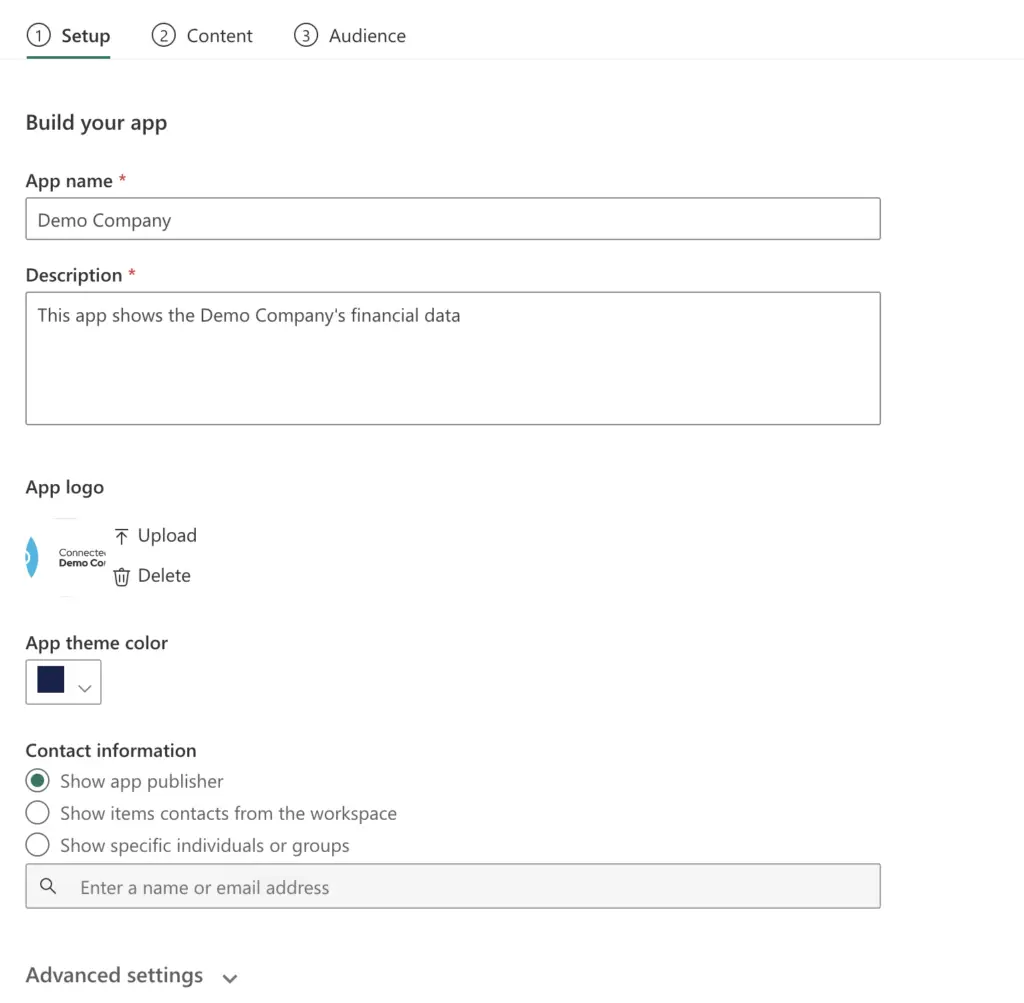
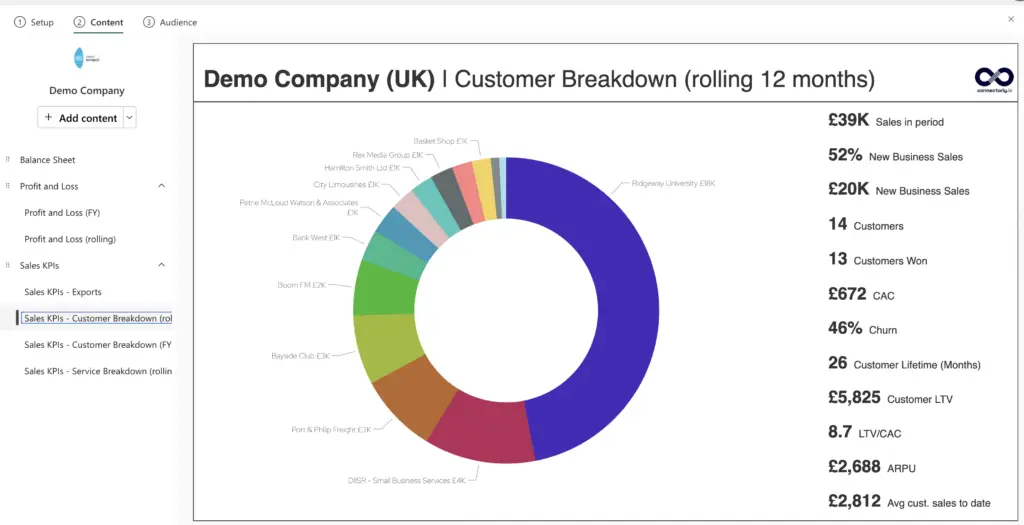
Next, select “Create app” within the workspace. Power BI will guide you through naming, branding, and describing the App. A clear description helps users understand what data the App contains and who it’s intended for. This is particularly important when your organisation uses several Apps for different departments.

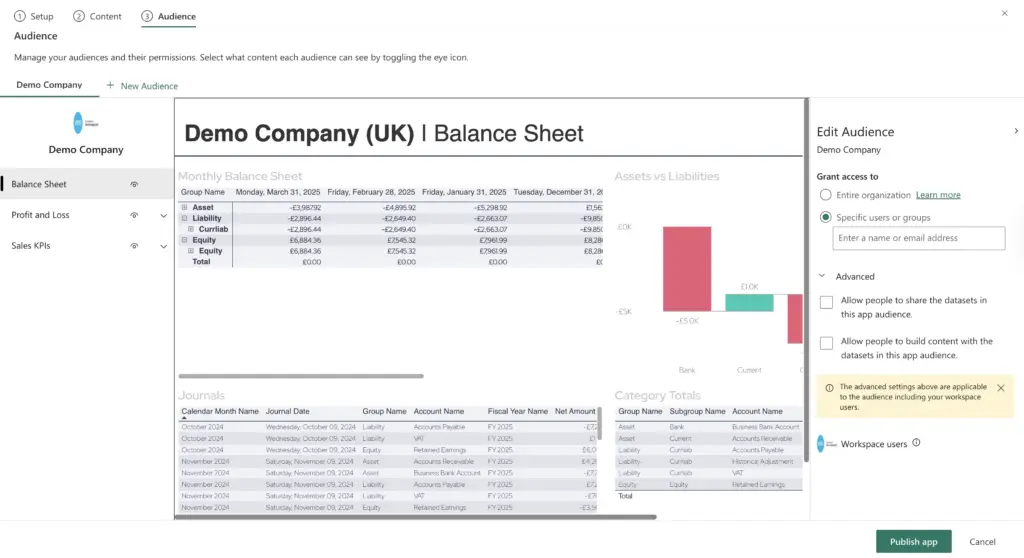
The navigation editor allows you to structure pages in a logical order. Grouping related reports under categories such as “Financials,” “Sales,” or “Operations” makes the App easier to browse. You can also choose which items appear in the navigation and which datasets remain hidden.
Finally, set permissions. Power BI lets you share the App with individuals, security groups, or distribution lists. If your reporting includes sensitive financial or payroll data, double-check these settings before publishing.
Keeping Your Power BI App Updated Without Disruption
One of the reasons businesses prefer Apps is that updates do not interrupt users. You can revise reports, adjust DAX measures, or add new pages within the workspace. None of these changes becomes visible until you publish an updated version of the App. This gives developers room to improve reporting without affecting daily operations.
For example, if you introduce a new forecasting page using Connectorly’s Xero data or expand your HubSpot reporting to include deal line items, you can build it privately, test calculations, and publish only when you are confident everything is consistent.
Related Reading
If you’re exploring Power BI Apps, you may also find these articles helpful:
– Power BI Desktop basics and tips: https://connectorly.io/blog/power-bi-desktop-tips-beginner/
– How to connect Xero to Power BI in minutes: https://connectorly.io/blog/connect-xero-to-power-bi-in-minutes/
– How to connect HubSpot to Power BI: https://connectorly.io/blog/connect-hubspot-to-power-bi/