Having clear and insightful data about your sales performance is crucial for making informed business decisions and shaping the future of your organisation. By accurately understanding sales trends, pipeline performance, and customer behaviour, your leadership team can proactively address challenges, capitalise on opportunities, and drive sustainable growth. Visualising and analysing this data effectively can transform strategic planning, enhance forecasting accuracy, and ultimately boost revenue and profitability.
Microsoft Power BI stands out as an industry-leading tool that turns complex sales data into clear, actionable insights. While integrating HubSpot data with Power BI can be achieved through various methods, the most straightforward and efficient solution is through Connectorly for HubSpot & Power BI. This guide outlines how Connectorly simplifies this integration, enabling your business to focus on interpreting insights and acting strategically.
Why Choose Connectorly for Your HubSpot and Power BI Integration?
Manually exporting data from HubSpot and importing it into Power BI is cumbersome, prone to error, and often leads to outdated insights. Connectorly streamlines this process with automated, real-time data syncing, allowing your team to spend less time on data entry and more time strategising and driving sales success.
Step 1: Register Your Connectorly Account
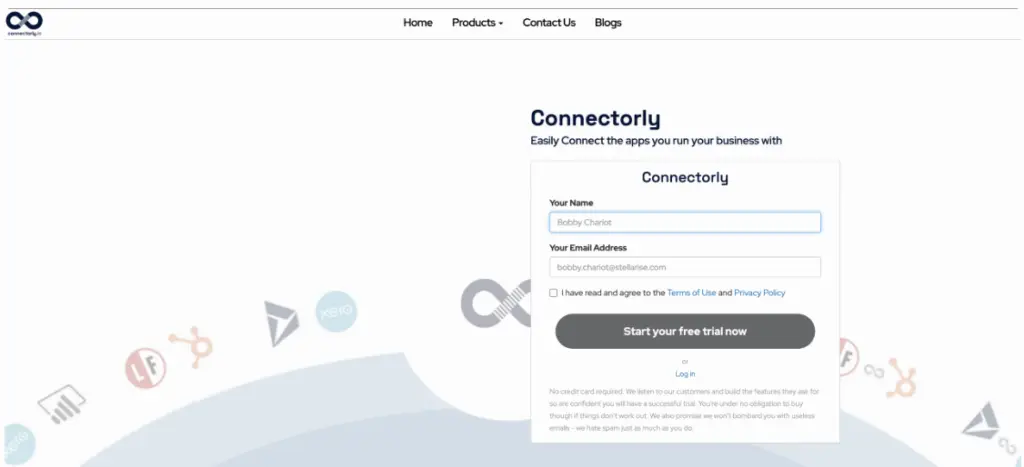
To begin, visit the Connectorly registration page and create your account. This grants you instant access to powerful tools designed to streamline data integration and reporting, eliminating the complexity typically associated with such processes.
Step 2: Create Your HubSpot & Power BI Connector
With your Connectorly account set up, create your dedicated HubSpot & Power BI connector. Navigate to your Connectorly dashboard, select “Create New Connector,” and choose the “HubSpot & Power BI” option. This straightforward step ensures your data moves seamlessly between the two platforms. Watch the video above for a step-by-step guide on setting up your connector.
For detailed guidance on creating your connector, check our setup guide here.
Step 3: Connect to Your HubSpot Account
Authorise Connectorly to securely access your HubSpot data. You’ll log in through Connectorly’s secure interface, establishing a trusted connection between HubSpot and Power BI. Rest assured, Connectorly prioritises robust data security and compliance.
Step 4: Download the Free Connectorly Template
Connectorly simplifies your setup further with a free, pre-built Power BI template specifically designed for HubSpot. The “HubSpot All-in-One Template” comes with ready-to-use visuals and relationships, significantly reducing the time and expertise required to start visualising your sales data effectively.
Download this template easily from our resources page here.
Step 5: Connect Power BI to Your Database
Open Power BI Desktop and use the Connectorly-provided credentials to connect directly to your database. Connectorly ensures continuous updating of your HubSpot data, providing your Power BI reports with accurate, timely insights.
For detailed steps, visit our support guide on how to bring HubSpot data into Microsoft Power BI Desktop.
Unlocking the Power of Your Sales Data
With your data integrated, Power BI transforms your HubSpot information into impactful visuals and dashboards. Monitor sales pipelines, evaluate deal performance, analyse quote conversions, and understand customer interactions. These insights empower your team to make informed, strategic decisions, drive improved sales outcomes, and shape a successful business trajectory.
Further Reading and Resources
Explore these resources to maximise your understanding of Connectorly’s integration capabilities:
Final Thoughts
Effortlessly connecting HubSpot with Power BI via Connectorly equips your organisation with precise, actionable insights that inform better decisions and drive business growth. Stay tuned for our upcoming YouTube video, which will provide a visual walkthrough of these integration steps.