If you’re an accountant, CFO, or sales manager, chances are Excel is still your go-to tool.
Even if your data lives in Xero or HubSpot, you probably feel more comfortable building reports, forecasts, or quick analysis in spreadsheets. And you might be asking:
- How do I export Xero data to Excel automatically?
- Can I connect HubSpot directly to Excel?
- Is there a way to avoid manual CSV exports every week?
The good news: yes, you can connect your Xero or HubSpot data directly to Excel using a PostgreSQL ODBC connection via Connectorly.
In this guide, we’ll show you how.
Why Connect Xero or HubSpot to Excel?
Many finance and sales professionals:
- Already have complex Excel models built
- Prefer pivot tables and familiar formulas
- Need quick ad-hoc analysis
- Want to combine accounting or CRM data with internal spreadsheets
Instead of manually exporting CSV files from Xero or HubSpot every week, you can connect Excel directly to your Connectorly database and pull live data into your workbook.
This approach works especially well for:
- Financial performance tracking
- Sales pipeline summaries
- Revenue forecasting
- Commission calculations
- Management reporting
Prerequisites
Before connecting Excel to your data, you must have your data available inside a Connectorly PostgreSQL database.
This is achieved through:
These connectors automatically extract your Xero or HubSpot data and push it into a dedicated PostgreSQL database generated specifically for your organisation.
Importantly, the data is structured using the Connectorly Data Model, which:
Organises your data into reporting-ready tables
Builds logical relationships between entities
Simplifies financial and sales reporting
Reduces the need for complex joins
Once your data is available in the Connectorly database, you can access it from Excel using a PostgreSQL ODBC connection as described below.
If you have not yet set up one of the Connectorly connectors, you will need to do this first before proceeding with the Excel connection.
Step-by-Step: Connect Xero or HubSpot to Excel
Step 1: Install the PostgreSQL ODBC Driver
To connect Excel to Connectorly, you’ll need the official PostgreSQL ODBC driver.
Download it from:
https://www.postgresql.org/ftp/odbc/releases/REL-17_00_0007/
Important:
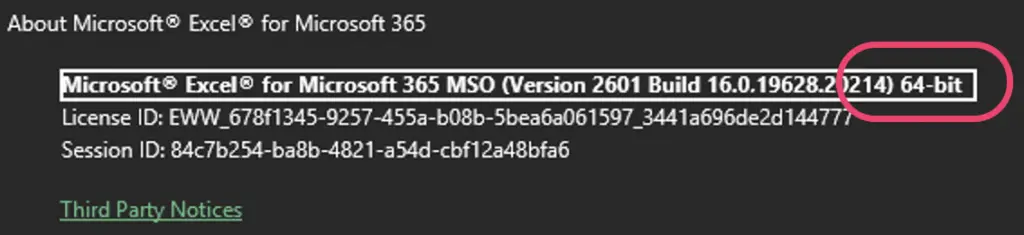
Choose the version that matches your Excel installation:
- 64-bit Excel → x64 driver
- 32-bit Excel → x86 driver
You can check this in Excel via:
File → Account → About Excel
Install the driver before proceeding.
Step 2: Create an ODBC System DSN
Once installed:
- Open ODBC Data Sources (make sure you open the version that matches Excel).
- Go to System DSN.
- Click Add.
- Select PostgreSQL Unicode.
- Click Finish.
You’ll now enter your Connectorly database details.
Step 3: Enter the Correct Server and Port
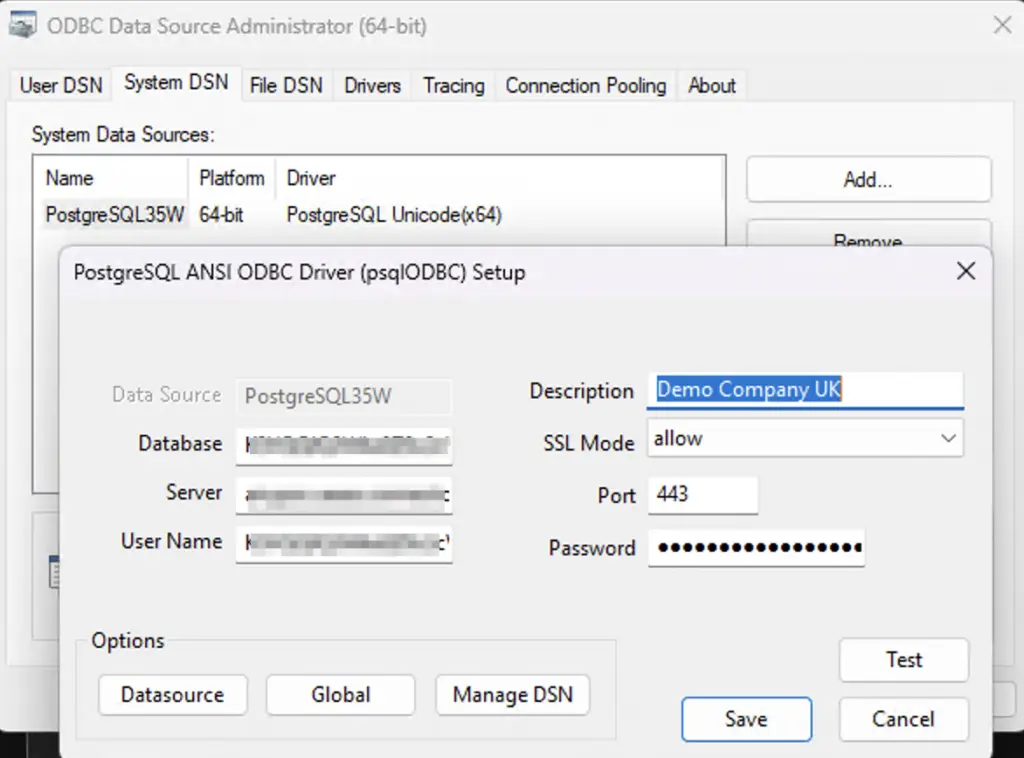
In the Connectorly portal, your server may appear like this:
xxxxx.connectorly.io:443
When setting up ODBC:
- Server = xxxxx.connectorly.io
- Port = 443
Important:
Do not include: 443 in the server field. The port must go into the separate Port box.
Enter the remaining credentials exactly as shown in your portal.
Click Test to confirm the connection works, then save.
Step 4: Connect Excel to the Database
Now open Excel:
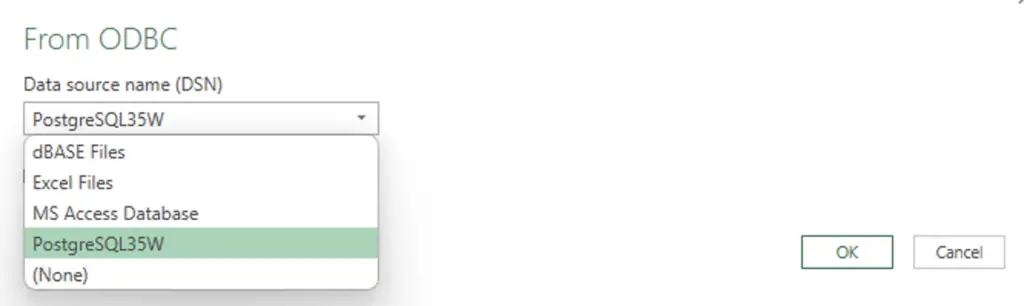
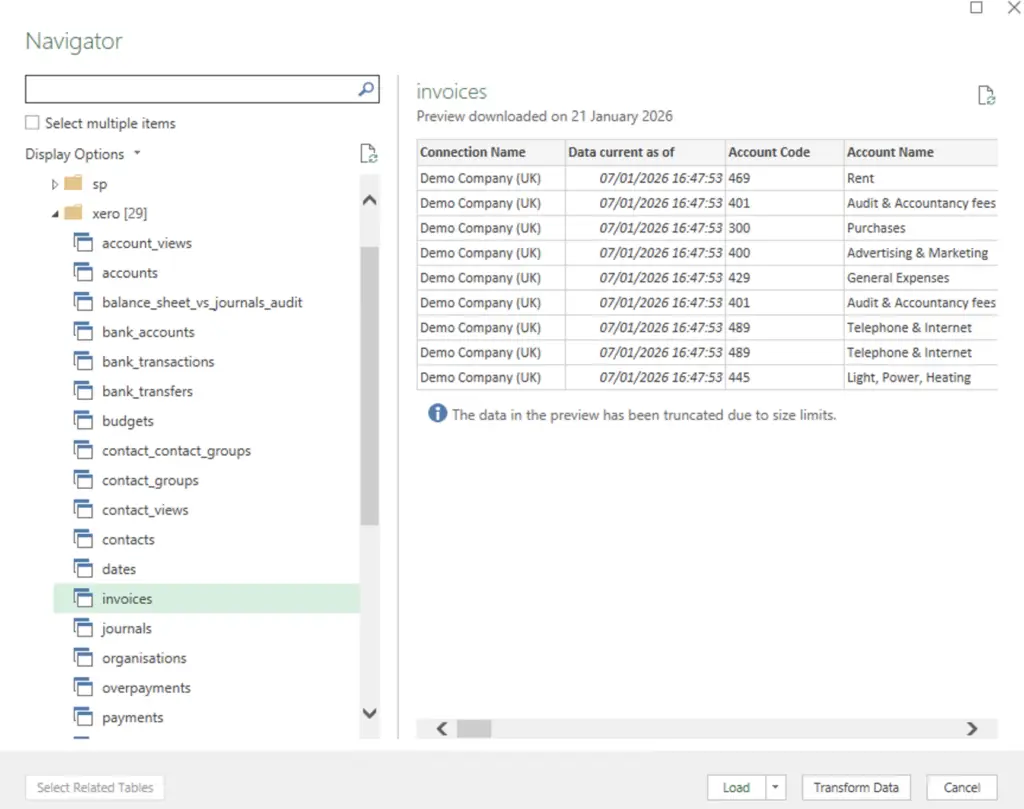
- Go to Data → Get Data → From Other Sources → From ODBC
- Select your newly created DSN
- Choose the tables you want to import
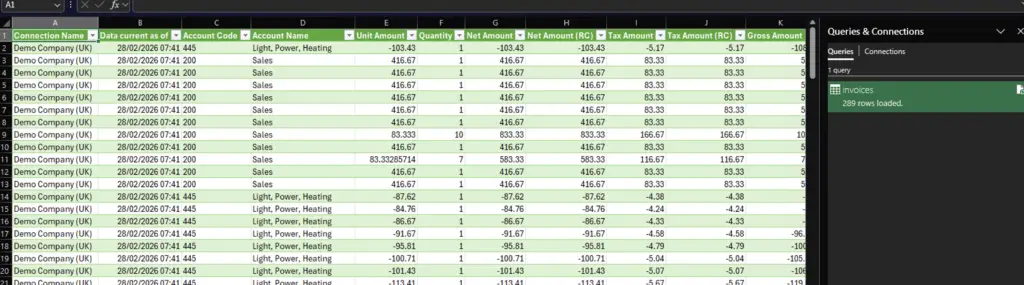
- Load the data into Excel
You now have direct access to your Xero or HubSpot data inside Excel.
Important: Excel Has Limitations
Before you go all-in, there’s something important to understand.
Excel is not a database engine.
If you import large datasets (for example, all invoices since 2015 or every HubSpot activity ever logged), you may experience:
- Slow performance
- Crashes
- File corruption
- 1-million-row sheet limits
Best Practice
Always filter your data:
- Import only the date range you need
- Select only the required columns
- Avoid loading full historical datasets
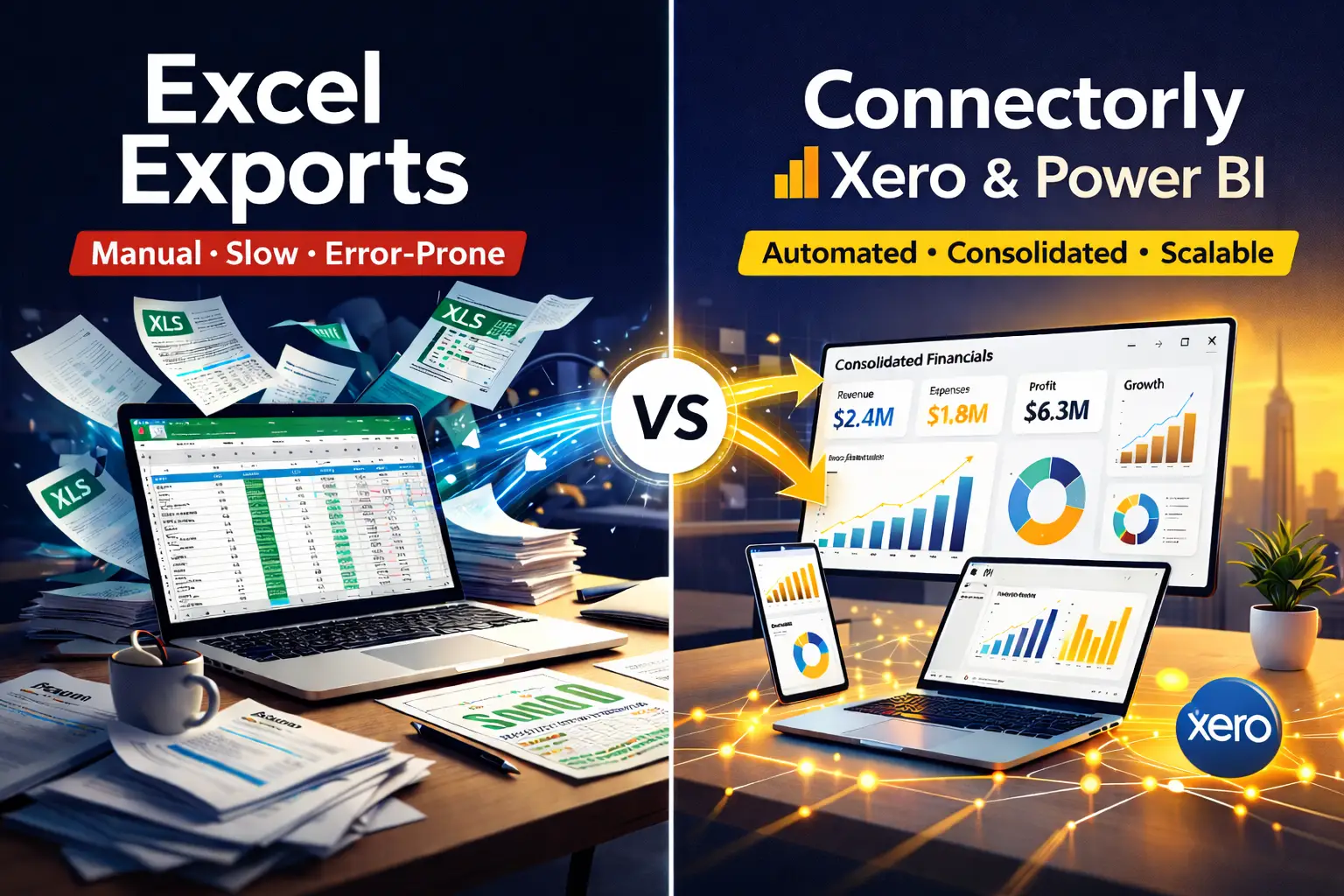
For small-to-medium datasets, Excel works well. For large-scale reporting, Power BI is significantly more robust.
When Excel Is the Right Choice
Excel is ideal if:
- You’re building ad-hoc financial models
- You need quick pivots and analysis
- Your dataset is manageable
- You want to combine CRM/accounting data with other spreadsheets
However, if you require:
- Multi-entity reporting
- Currency consolidation
- Automated refresh at scale
- Advanced data modelling
Power BI will be a better long-term solution.
Final Thoughts
If you’re an accountant, CFO, or sales leader who lives in Excel but needs easier access to Xero or HubSpot data, setting up a PostgreSQL ODBC connection through Connectorly is a practical solution.
It eliminates manual exports, reduces errors, and gives you more control over your data.
Just remember to keep your datasets filtered and manageable.
If you’re unsure whether Excel or Power BI is the right approach for your reporting needs, feel free to explore our resources or reach out to our team for guidance.
⚠️ Please note: We do not officially support Excel connections. Excel has significant limitations compared to Power BI, especially for larger datasets.
Frequently Asked Questions
Can I connect Xero directly to Excel?
Yes. You can connect Xero data to Excel using a PostgreSQL ODBC connection via Connectorly. This allows you to pull live accounting data into Excel without manual CSV exports.
Can I connect HubSpot to Excel without exporting CSV files?
Yes. By using a PostgreSQL ODBC driver and creating a System DSN, you can connect HubSpot data directly to Excel and refresh it without manual exports.
What is the best way to import large Xero datasets into Excel?
Excel is not designed for very large datasets. It is recommended to filter data by date range and select only required columns to avoid performance issues. For large-scale reporting, Power BI is a better option.
Do I need the PostgreSQL ODBC driver to connect Excel to Connectorly?
Yes. Excel requires the PostgreSQL ODBC driver to connect to the Connectorly database. You must install the version that matches your Excel installation (32-bit or 64-bit).