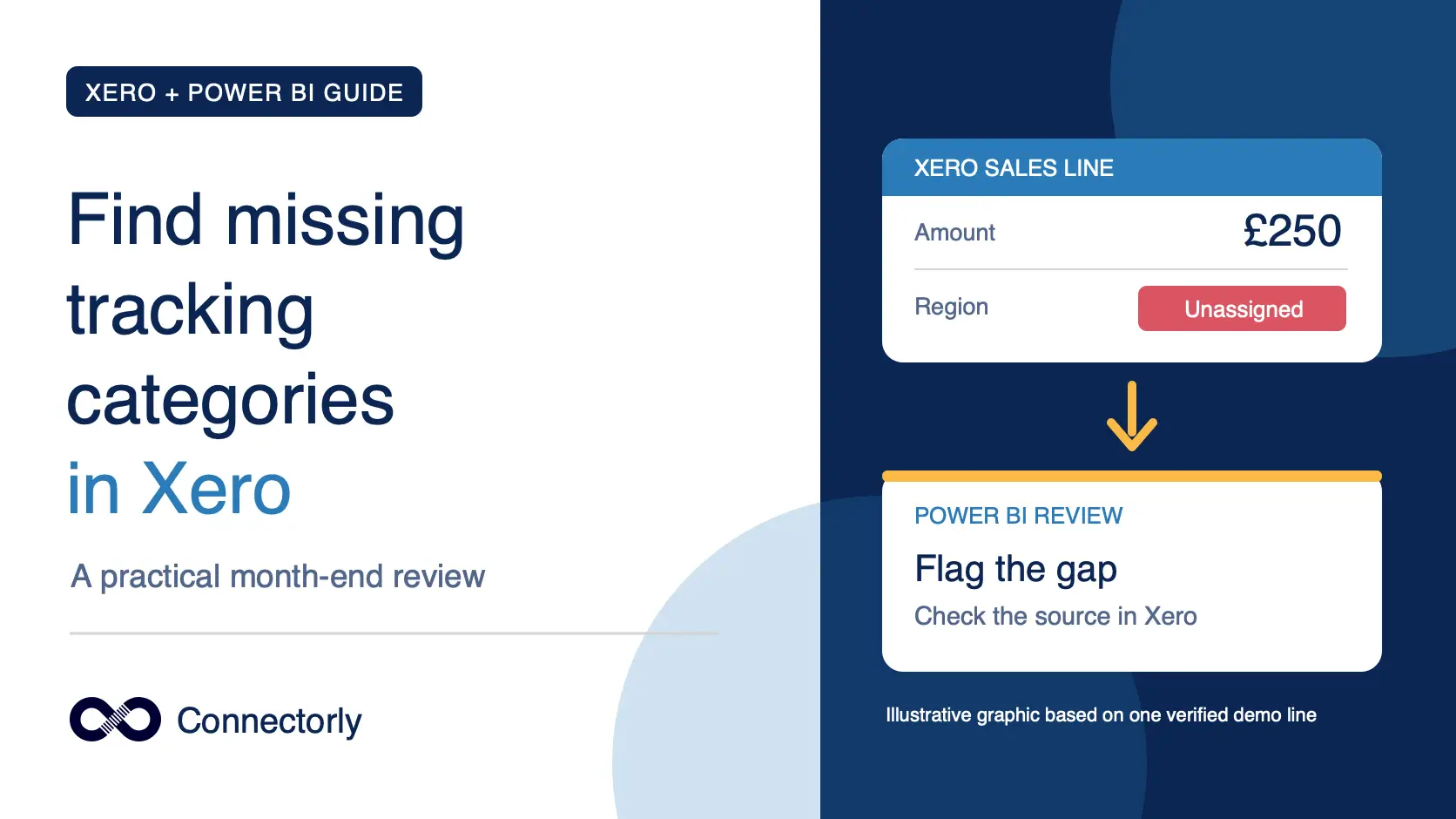
Looking for missing Xero tracking categories on your transaction lines? An unassigned option can leave part of your income or costs outside a report broken down by region, department or another category. Before month end, it helps to find those lines and check whether they need correcting.
Xero does not currently offer a way to make tracking categories mandatory across all relevant transactions. In its response to the tracking request, Xero suggests using Find and Recode to assign options to unassigned lines.
This guide shows how to approach a tracking completeness check, decide which unassigned lines actually need attention, correct them in Xero and check the results. Not every line without tracking is a mistake: the check must reflect how your organisation uses each category.
What Counts as a Missing Tracking Category?
A tracking option is missing when a transaction line has no option assigned for a category that your organisation expects to use on that line. For example, if you report sales by Region and require every sales line to have a Region, a sales line with no Region needs review.
Expected matters here. An unassigned line is not automatically an error. Your policy might require Region on sales and operating expenses but leave other accounts or transaction types untracked. Define that scope before counting missing assignments, or the check will produce misleading results.
Check tracking at the transaction-line level, because different lines on the same invoice or bill can have different assignments. Also distinguish the income or expense line you want to analyse from accounting lines that do not need the same tracking option.
For a useful month-end review, record the category being checked, the accounts and transaction types where it is required, and the period under review. You can then investigate each unassigned line against that rule instead of treating every blank tracking field as a problem.
If you are setting up categories for the first time, start with our guide to creating Xero tracking categories before building the completeness check.
How to Find Missing Xero Tracking Categories
Xero’s Find and Recode tool can search for transaction lines that have not been assigned a tracking category. Use it to review the lines before deciding whether anything needs changing.
In Xero, open Accounting → Find and Recode. You’ll need access to this feature in your organisation.
Set a date range for the period you are reviewing, then narrow the search to the transaction types and accounts where your organisation expects tracking.
Add a Tracking search condition for lines without an option assigned to the category you are checking.
Review the results line by line. Check the account, transaction and description to decide whether each missing option is an omission or an intentional exception.
Record the lines that need correction. If you’re reviewing more than one tracking category, repeat the search for each category.
This gives you a way to find unassigned lines in Xero. It does not mean that every result should receive the same tracking option. Confirm the correct assignment with the person responsible for the transaction before making a bulk change.
Xero explains the supported searches and transaction types in its Find and Recode guidance. When you’re ready to correct confirmed omissions, our Find and Recode walkthrough covers that process in more detail.
Build a Repeatable Tracking Completeness Check in Power BI
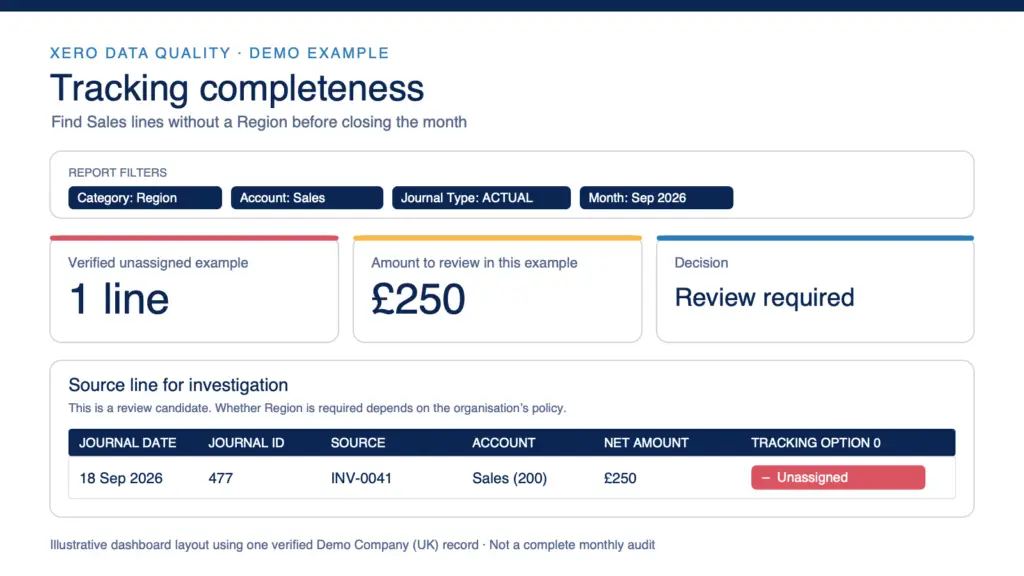
A Power BI view can make this review easier to repeat each month. Instead of searching only for individual omissions, you can see which accounts contain unassigned amounts, how those amounts change over time, and which source records need investigation.
Connectorly’s Xero journal data includes the journal date, account, source details and tracking fields. It also includes a Journal Type field. Start with ACTUAL journals when checking posted Xero activity; the data model also contains additional entries used for forecasting and budgeting, which should not be counted as missing assignments in this check.
Build the review in this order:
Choose the tracking category. Check which tracking field in your model represents the category you want to review, such as Region. Inspect a few assigned and unassigned records first so you know how each appears in your data.
Define where tracking is required. Limit the review to the accounts and transaction types covered by your organisation’s policy. For example, a Region review might include sales and selected operating expense accounts.
Filter to the reporting period. Use the journal date for the month you are closing.
Show the unassigned lines. Create a table with the date, account, description, source details, amount and the relevant tracking field. Include a total for the amount needing review, but keep the underlying lines visible so each item can be checked.
Compare with Xero. Investigate the source transactions and confirm which lines genuinely need a tracking option. Correct those in Xero, refresh the Power BI data, then check that the reviewed lines no longer appear.
Treat the resulting amount as “unassigned amount to review”, not automatically as an accounting error or a change to profit. The transactions may already be included in your overall financial totals; the issue is whether they have been allocated correctly for tracking-based reporting.
The available journal fields are listed in Connectorly’s Xero journal data guide. We will check the exact blank-value behaviour and filters against the demo model before adding a formula or claiming a tested result.
A Verified Example: An Invoice Without a Region
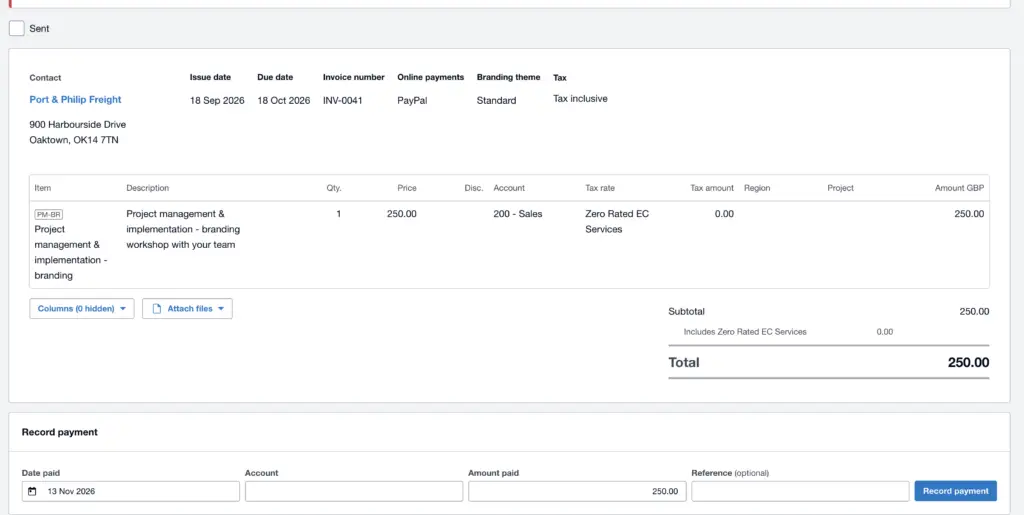
We checked an invoice in Xero’s Demo Company (UK) against the same record in a Connectorly Power BI report. Invoice INV-0041 has a £250 Sales line dated 18 September 2026. Its Region field is empty.
In Power BI, the corresponding ACTUAL Sales journal line has Journal ID 477, the same date and a £250 amount. Tracking Option 0 displays -. Xero’s Journal Report also shows the £250 Sales entry with no Region. This confirms that the report identifies this particular unassigned line accurately.
The line belongs on a review list. We cannot conclude from the empty field alone that someone made a mistake. If the business requires Region on every Sales line, the responsible person should confirm the correct option and update the transaction in Xero. If this sale is deliberately outside regional reporting, document that exception so it is not raised as an unresolved issue every month.
Correct Confirmed Omissions and Recheck the Report
Once someone has confirmed that a line should have a tracking option, make the correction in Xero. Do not assign a Region only in Power BI: that would leave the source transaction unchanged and could make reports disagree.
Identify the source transaction from the review list. Check its date, account, amount and reference before editing anything.
Confirm the correct tracking option with the person responsible for the transaction.
Update the relevant line in Xero. For several confirmed omissions, Find and Recode may help you search and update transaction lines together. Review the selected lines and Xero’s proposed changes carefully before approving a bulk recode.
Refresh the Connectorly data in Power BI. Confirm that the corrected line no longer appears on the unassigned review list and that the tracking breakdown now shows it under the intended option.
Keep a record of intentional exceptions. This lets the next month-end review distinguish a known unassigned line from a new omission.
Our Xero Find and Recode guide walks through the correction tool. Xero also documents its supported transaction types and restrictions; some lines cannot be recoded with that tool, and locked periods can limit changes.
A Month-End Tracking Review Checklist
Use the same rules each month so changes in the review list mean something.
Confirm the period and data refresh. Check the dates you are reviewing and when the Power BI data was last updated.
Check each required category separately. Record which accounts and transaction types should have an option for that category.
Review ACTUAL lines with no option assigned. In the Connectorly demo data, an unassigned Tracking Option 0 displays as
-. Check how unassigned values appear in your own model before applying a filter.Investigate the source transactions. Use the date, account, amount and source details to decide whether each line is an omission or an intentional exception.
Correct confirmed omissions in Xero. Have the right person approve the intended option before changing an individual line or a group of lines.
Refresh and recheck. Confirm the corrected lines leave the review list and appear under the intended tracking option. Compare the overall financial totals before and after the correction so you can spot any unexpected change.
Keep the review list and any documented exceptions with your month-end working papers. The aim is a tracking breakdown you can explain and trace back to Xero, not simply a report with no blank values.
Frequently Asked Questions
Can I make a tracking category mandatory in Xero?
Xero does not currently provide a setting to make tracking categories mandatory across all relevant transactions. Its tracking-category product idea is marked “Not in pipeline”. Check that page for any change to Xero’s position.
Can Xero find transactions without a tracking category?
Yes. Find and Recode can search for transaction lines that have not been assigned a tracking category. Apply your account, transaction type and date rules before treating the results as omissions. Xero lists the tool’s supported searches and restrictions.
Does every unassigned line need fixing?
No. Some lines may be outside your organisation’s tracking policy. Review the underlying transaction and the account before assigning an option. A blank tracking field is a prompt to investigate, not proof of an error.
Does missing tracking change my overall profit figure?
A missing tracking option does not, by itself, remove the transaction from the overall accounts. It can leave the amount unallocated in a report broken down by that category. Compare the category breakdown with the overall total, and investigate any difference using the source lines.
Can I correct the missing option in Power BI?
You can flag an unassigned line in Power BI, but the source correction belongs in Xero. After the Xero change has reached your Connectorly data, refresh the report and check that the line appears under the intended tracking option.
Make Tracking Gaps Visible Before Month End
Missing tracking options are easiest to resolve while the transactions are still familiar. Define where tracking is required, review unassigned lines against that rule, correct confirmed omissions in Xero and check the breakdown again.
If you also compare actuals with budgets by Region or another tracking option, see our tested guide to consolidating Xero tracking budgets in Power BI. Checking unassigned actuals helps you interpret those comparisons.
Xero’s Find and Recode tool helps you locate and correct supported transaction lines. If you also need a repeatable view of unassigned amounts by account and period, Connectorly for Xero and Power BI makes Xero journal and tracking data available for that analysis. The review rules still need to reflect how your business uses tracking categories.
Want to see how a tracking completeness view could work with your reporting requirements? Book a Connectorly demo.