

Seeing (Blank) in a Power BI slicer can be frustrating, especially when the rest of your report appears to be working correctly.
You might have a customer, product, date or category slicer that includes an unexpected (Blank) option. Sometimes the reason is simple: the underlying column contains missing values. In other cases, the blank appears because of unmatched relationships or the way data is filtered in the report.
The good news is that there are several ways to address this, depending on what is causing the problem.
In this guide, we’ll explain four practical methods for removing or resolving (Blank) values in Power BI slicers. We’ll also look at when each method is appropriate, why simply hiding blanks is not always the best solution, and how to avoid accidentally changing your report results.
Why Does (Blank) Appear in Power BI Slicers?
A (Blank) option in a Power BI slicer usually means that Power BI is encountering a missing or unmatched value in the data model.
There are several possible reasons for this:
• Missing values in the source data. The column used by the slicer contains null or blank values. For example, some customer records may not have a region assigned.
• Unmatched relationships between tables. A transaction references a customer, product or category that does not exist in the related lookup table. Power BI may introduce a blank member to represent those unmatched records.
• Values without matching data. A slicer can display categories that have no relevant transactions for the current reporting context. These are not necessarily blank values, but they can make slicer filtering more confusing.
• Empty text values. A column may contain empty strings or whitespace that appear blank to users, even though they are not stored as database null values.
The important distinction is that hiding (Blank) from a slicer is not always the same as fixing the underlying problem.
For example, filtering out the blank option might make the slicer look cleaner, but it will not repair a broken relationship or restore missing customer information.
Before choosing a solution, consider whether you simply want to hide an unwanted slicer option or correct a data-quality issue affecting the report.
Method 1: Remove (Blank) from a Slicer Using Visual-Level Filters
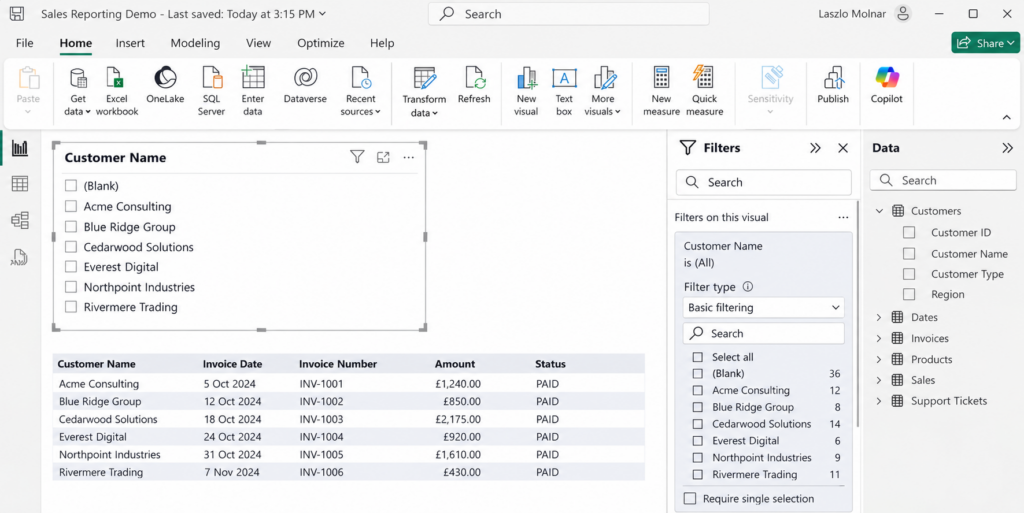
The quickest way to remove the (Blank) option from a Power BI slicer is to apply a visual-level filter. This hides the blank option without changing your source data or removing rows from your data model.
Step-by-step instructions
1. Open your report in Power BI Desktop.
2. Select the slicer that contains the unwanted (Blank) option.
3. Open the Filters pane. If it is hidden, go to View and enable Filters from the Panes options.
4. Under Filters on this visual, find the field used by the slicer.
5. Expand that field and select Basic filtering if it is not already selected.
6. In the list of values, clear the checkbox next to (Blank). Leave the other values selected.
The (Blank) option should disappear from that slicer.
When should you use this method?
Visual-level filtering is ideal when you want to clean up a slicer without modifying the underlying data. It is particularly useful when blank values are expected or do not need to be selectable by report users.
Important: This method hides the blank option; it does not correct missing values or unmatched relationships. Depending on how the slicer is used, selecting nonblank values can also exclude records associated with blank or unmatched keys from the filtered results.
If the blank represents a data-quality problem, investigate the underlying cause rather than relying only on a visual-level filter.
Method 2: Remove Blank Values Using Power Query
If the (Blank) option comes from missing values in your source data, you can address the issue in Power Query before the data is loaded into your Power BI model.
Unlike Method 1, which only hides the blank option in a particular slicer, this approach removes rows containing null or empty values from the selected query.
Step-by-step instructions
Open your report in Power BI Desktop.
On the Home ribbon, select Transform data to open Power Query Editor.
In the Queries pane, select the table containing the field used by your slicer.
Find the relevant column and select its filter dropdown.
Choose Remove empty to exclude rows where that column contains null or empty values.
Review the remaining rows to confirm the filter has removed the intended records.
Select Home → Close & Apply to apply the changes to your Power BI model.
Once the changes are applied, refresh or review your slicer to check whether the unwanted blank option has disappeared.
When should you use this method?
Power Query is appropriate when rows with missing values are genuinely unnecessary for your analysis, such as invalid records in a dedicated lookup table.
However, removing rows from a transaction table can also remove legitimate sales, expenses or other records from your reports.
Important: Do not remove transaction rows simply to make a slicer look cleaner. If the missing values represent valid business transactions, consider keeping those records and using Method 1 instead.
Also remember that removing empty values from a lookup table will not automatically repair relationships with unmatched keys. Those issues need to be investigated separately.
Method 3: Fix Relationships That Cause (Blank) Values
Sometimes a Power BI slicer displays (Blank) even when the column used by the slicer contains no missing values.
One possible cause is a relationship between tables where some records do not have a matching value in the related lookup table.
How Unmatched Keys Create the Blank Member
For example, imagine a Sales table containing transactions for Customer ID 105, but the Customers table does not contain that customer. If the slicer uses Customers[Customer Name], Power BI may introduce a blank member to represent transactions that cannot be matched to an existing customer.
This can happen even when every customer name in the Customers table is populated.
How to Find and Correct Relationship Problems
Step-by-step instructions
Open your report in Power BI Desktop.
Select Model view using the icon on the left side of Power BI Desktop.
Locate the table containing your slicer field and the related transaction table.
Examine the relationship connecting the two tables. Double-click the relationship line to review its settings.
Check that the relationship uses the correct columns and that the columns contain compatible data types.
Check whether the transaction table contains customer, product or category IDs that are missing from the related lookup table.
Correct the missing or inconsistent keys in the source data or Power Query, where appropriate.
Apply any necessary changes and refresh the model. Then check the slicer again.
When should you use this method?
This approach is appropriate when the blank option is caused by unmatched records rather than genuinely missing values in the slicer column.
It is particularly relevant for reports that combine transaction tables with customer, product, account or other lookup tables.
Important: Changing the relationship’s cross-filter direction is not a reliable solution to missing keys. The goal is to identify why records do not match and correct the underlying data or model.
Also, avoid deleting unmatched transactions simply to remove (Blank). Those transactions may represent legitimate business activity and should remain included in financial totals.
Method 4: Filter Slicer Values Using a DAX Measure
Sometimes a slicer displays categories or customers that have no matching transactions. Rather than removing those values from your data model, you can use a DAX measure to control which options appear in the slicer.
This is useful when you want slicer options to reflect the data available in your report.
Create and Apply the DAX Measure
Step-by-step instructions
For this example, assume your Power BI model contains a Customers table and a related Sales table. The Sales table contains a numeric Amount column.
1. Open your report in Power BI Desktop.
2. On the Modeling ribbon, select New measure.
3. Enter the following DAX measure:
Total Sales = SUM(Sales[Amount])
4. Select the slicer that uses a field such as Customers[Customer Name].
5. In the Filters pane, find Filters on this visual.
6. Drag the Total Sales measure from the Data pane into Filters on this visual.
7. Expand the measure filter and configure it to show items where Total Sales is not blank.
8. Check the slicer to confirm that customers without matching sales are no longer displayed.
When Measure-Based Slicer Filtering Works Best
When should you use this method?
Measure-based filtering is useful when you want a slicer to show only customers, products or categories associated with actual report data.
It can also help simplify slicers containing many unused values.
Important: This is not a universal solution for removing (Blank). When the blank member represents unmatched transactions that contribute to Total Sales, the measure may return a value for (Blank), allowing the option to remain visible.
To hide (Blank) regardless of whether it has transactions, Method 1 is generally more appropriate. For blanks caused by unmatched relationships, investigate Method 3.
Which Method Should You Use to Remove (Blank) in Power BI?
| Method | Best for | Changes underlying data? |
|---|---|---|
| 1. Visual-level filter | Quickly hiding (Blank) in a specific slicer | No |
| 2. Power Query | Removing genuinely unwanted records with missing values | Yes, changes the loaded dataset |
| 3. Fix relationships | Resolving unmatched keys and model-generated blank members | May require data or model corrections |
| 4. DAX measure filter | Showing only slicer options with matching report data | No |
Why Is (Blank) Still Showing in My Power BI Slicer?
If you’ve tried removing (Blank) but it still appears in your Power BI slicer, check the following possibilities.
1. The blank comes from a relationship, not the source column
Your lookup table might contain no missing values, but Power BI can still display a blank member when related transactions have no matching lookup record. Check the relationship keys and investigate unmatched records.
2. The values are empty strings or whitespace
Some values that look blank are actually empty text strings or contain spaces. These may behave differently from true null values. Use Power Query to inspect and clean the column, including trimming unwanted whitespace where appropriate.
3. The slicer is using a different column than expected
Check the field assigned to the slicer. If your model contains several customer, product or category columns, you may be cleaning one column while the slicer uses another.
4. Your changes haven’t been applied or refreshed
If you made changes in Power Query, select Close & Apply. If the source data has changed since the last refresh, refresh the model and check the slicer again.
5. Your DAX measure still returns a value for (Blank)
A measure-based filter does not automatically exclude blank categories. If unmatched transactions contribute to your measure, the blank member may still satisfy the filter condition.
6. Other report filters are affecting the available options
Page-level filters, report-level filters and interactions between visuals can affect which slicer values are available. Review the report’s filter context before assuming the underlying data is incorrect.
Tip: If you only need to hide the literal (Blank) option, start with Method 1. If it keeps returning after data changes, investigate the source column and relationships before applying more complex filtering.
Frequently Asked Questions About Blank Values in Power BI Slicers
How do I remove (Blank) from a Power BI slicer without deleting data?
Select the slicer, open the Filters pane, and locate its field under Filters on this visual. Use Basic filtering to deselect (Blank). This hides the blank option without removing records from the underlying data model.
Why does my Power BI slicer show (Blank) when there are no null values?
Power BI can introduce a blank member when relationships contain unmatched keys. For example, a transaction might reference a customer ID that does not exist in the Customers table. Empty strings and whitespace can also appear blank without being stored as null values.
Can I remove (Blank) from all slicers at once?
There is no universal setting that automatically removes (Blank) from every slicer. You can apply visual-level filters to individual slicers or address the underlying data-quality issue so that multiple slicers no longer display unwanted blank values.
Will removing (Blank) affect my Power BI totals?
It depends on the method. Hiding (Blank) using a visual-level filter does not delete records from your model, although slicer selections can affect which records contribute to displayed results. Removing rows in Power Query can change totals because those records are excluded from the loaded dataset.
What is the difference between BLANK() and an empty string in Power BI?
BLANK() represents a missing or undefined value in DAX, while an empty string is a text value containing no characters. They can behave similarly in some expressions but are not identical in every context. Whitespace-only strings are another possibility and may require trimming during data preparation.
Can a DAX measure automatically hide blank slicer options?
A measure can filter slicer options based on whether matching data exists. However, it does not guarantee that (Blank) will disappear. If the blank member has matching transactions and the measure returns a value, the option may remain visible.
Final Thoughts: Keep Your Power BI Slicers Clean and Accurate
Removing (Blank) from a Power BI slicer is often straightforward, but choosing the right method matters.
If you simply want a cleaner report, visual-level filtering is usually the quickest solution. If blank values are caused by missing data or unmatched relationships, correcting the underlying issue will help improve the reliability of your reports.
Remember that removing records from Power Query can affect your totals, while measure-based filtering is better suited to hiding categories without matching data than universally removing blank values.
The key is to understand why (Blank) appears before deciding how to remove it.
If you’re building Power BI reports using Connectorly for Xero and Power BI or Connectorly for HubSpot and Power BI, a consistent and well-structured data model can make reporting easier to maintain.
Once your slicers are working correctly, our Power BI drill-through guide explains how users can move from summary figures to filtered detail pages.
For more practical reporting tutorials, explore our Power BI articles and guides.