
From Sales Opportunity to Cash Received
A HubSpot and Xero sales-to-cash dashboard in Power BI connects sales pipeline information with the financial transactions that follow. It helps organisations see how a HubSpot opportunity progresses from a closed-won deal to an invoice in Xero and, ultimately, to cash received.
HubSpot and Xero answer different parts of the commercial reporting question. HubSpot records opportunities, expected values, owners, pipeline stages and close dates. Xero records invoices, payments, credit notes and outstanding balances. Looking at either system alone leaves part of the journey unexplained.
By bringing both datasets into one Power BI model, you can answer questions such as:
- How much closed-won deal value has been invoiced?
- Which won customers have not yet been invoiced?
- How much invoiced revenue has been paid?
- Which customers still have outstanding balances?
- How long does it take to move from a won deal to an invoice and then to payment?
- Where do HubSpot deal values differ from Xero invoice values?
This guide uses the Connectorly HubSpot and Xero datasets in Power BI. It assumes that the two sources have already been loaded and that equivalent customer records have been connected through a reviewed mapping table. If you have not completed that stage, begin with our guide to combining Xero and HubSpot data in Power BI.
We will build the dashboard carefully and validate each stage. A closed-won deal is not automatically recognised revenue, an invoice is not automatically a payment, and differences between the systems do not always indicate an error. The goal is to make each stage visible without treating distinct commercial and accounting measures as though they were interchangeable.
What Does Sales-to-Cash Reporting Measure?
Sales-to-cash reporting follows commercial value through several distinct stages. Each stage comes from a different business process and should remain separately identifiable in the Power BI model.
| Stage | Primary source | What it represents |
|---|---|---|
| Sales opportunity | HubSpot | A potential sale recorded in the CRM. |
| Closed-won deal | HubSpot | A sale the commercial team considers successfully won. |
| Invoice issued | Xero | An accounting document requesting payment from the customer. |
| Payment received | Xero | Money recorded against an invoice or customer balance. |
| Outstanding balance | Xero | The invoiced amount that remains unpaid. |
These stages do not always form a simple one-to-one chain. One HubSpot deal might result in several Xero invoices, several deals might be covered by one invoice, and an invoice may be paid through multiple payments. Credit notes, deposits, recurring invoices, partial payments and foreign-currency movements can add further complexity.
For that reason, this dashboard should not attempt to force every deal into a single invoice record. Instead, it should provide two complementary views:
- Customer-level sales-to-cash reporting, which compares HubSpot and Xero totals for the same mapped customer.
- Document-level matching, used only when your organisation has a reliable shared reference—such as an order number, deal ID or invoice reference—that connects individual deals and invoices.
We will begin with the safer customer-level approach. It provides useful commercial insight without implying that two records are directly related when no dependable document-level key exists.
What You Need Before You Start
To follow this walkthrough, you need Power BI Desktop and access to both the Connectorly Xero and HubSpot datasets. You should also have completed the customer-mapping process described in the previous guide. The following tables provide the main information for the dashboard.HubSpot sales information
Thehubspot deals table provides the CRM side of the journey. Useful fields include:
Deal IDandDeal NameAmount (RC)Is Closed WonClosed Won DatePrimary Company IDCompany NameOwner NamePipeline LabelandPipeline Stage LabelOrder Number, where your organisation uses it as a shared referenceReporting Currency
Xero invoice information
Thexero invoices table provides invoice values, dates and payment status. Relevant fields include:
Invoice IDandInvoice NumberInvoice DateandDue DateContact IDandContact NameNet Amount (RC),Tax Amount (RC)andGross Amount (RC)Amount Paid (RC)Amount Due (RC)Amount Credited (RC)StatusReferenceReporting CurrencyInternal URL
The table also contains fields such as Account Code, Product Code and Quantity. This means an invoice can appear across several rows when it contains multiple lines. Invoice counts must therefore use distinct Invoice ID values. In the dataset tested for this guide, monetary values are allocated across those invoice lines, so fields such as Gross Amount (RC), Amount Paid (RC) and Amount Due (RC) can be summed after the appropriate invoice-type and status filters have been applied. Validate the row grain in your own model before creating the measures.
Xero payment information
Thexero payments table supports cash-receipt and payment-timing analysis. Important fields include:
Payment IDPayment DateInvoice IDandInvoice NumberContact IDandContact NameBank Amount (RC)Payment StatusandPayment TypeIs ReconciledConnection Name
Customer and mapping information
Thexero contacts table provides the Xero customer key through Xero Contact Key, together with Connection Name, Contact ID and Contact Name.
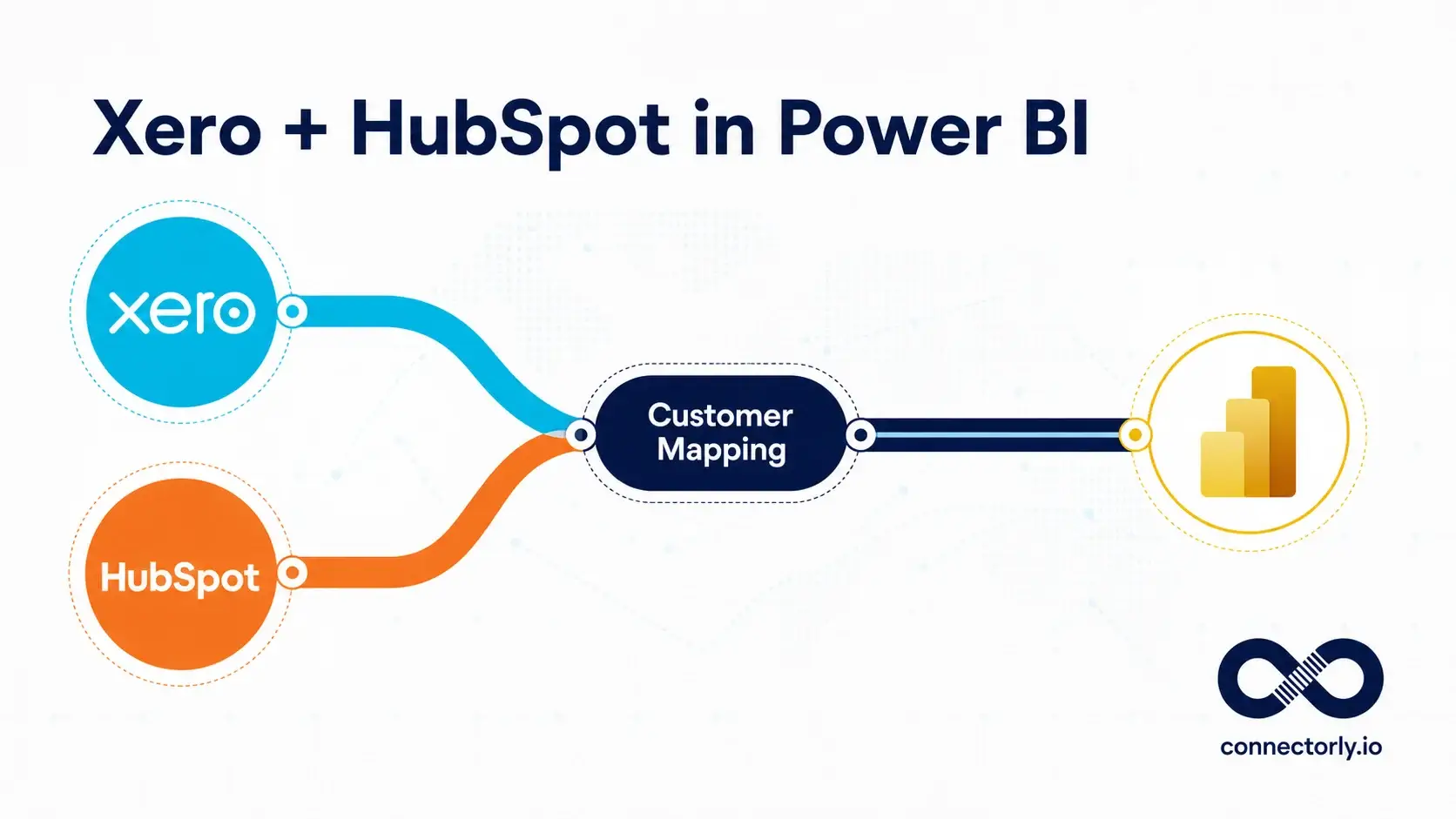
The customer-mapping table created in the previous guide connects this Xero contact key to the corresponding HubSpot company. The existing HubSpot company-to-deal relationship then allows a mapped customer selection to filter both HubSpot deals and Xero financial records.
We will also use an appropriate Connectorly date table for time-based analysis. Deal, invoice and payment dates represent different events, so their relationships and use in visuals must be handled deliberately. Extend the Customer Model to Xero Payments
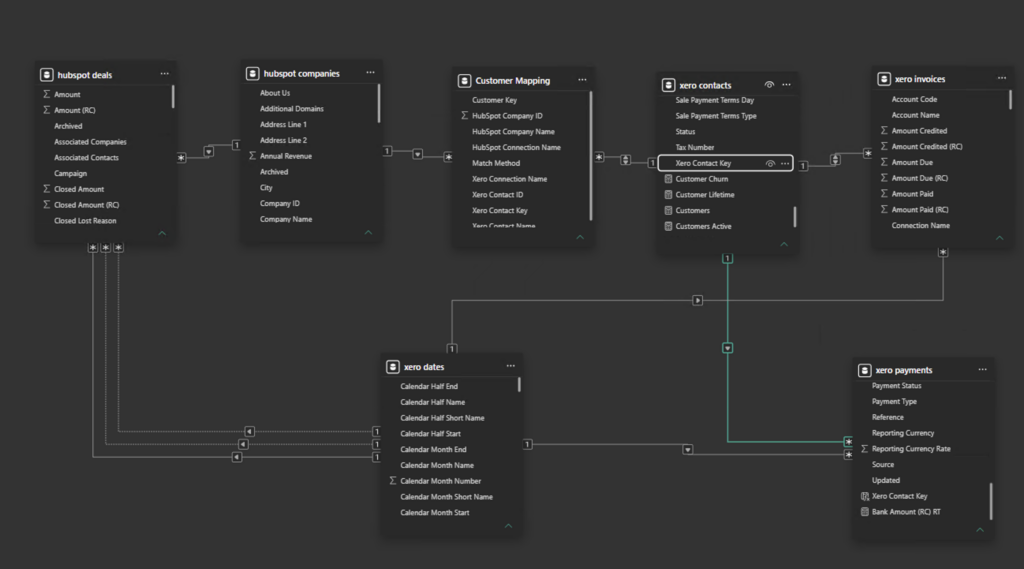
The customer mapping created earlier already connects HubSpot companies to Xero contacts and invoices. To include cash receipts in the same reporting model, extend that filter path to the xero payments table.
Create the following calculated column in xero payments:
Xero Contact Key =
VAR ContactID = 'xero payments'[Contact ID]
RETURN
IF(
ISBLANK(ContactID),
BLANK(),
'xero payments'[Connection Name] & "|" & ContactID
)The connection name is included because separate Xero organisations could contain identical contact IDs. The composite key therefore keeps each contact unique across connections.
Create an active relationship with these settings:
- One side: xero contacts[Xero Contact Key]
- Many side: xero payments[Xero Contact Key]
- Cardinality: One-to-many (1:*)
- Cross-filter direction: Single
The complete customer filter path is now:
HubSpot company → Customer Mapping → Xero contact → Xero invoice or payment
This means a HubSpot company slicer can filter closed-won deals, issued invoices, cash receipts and outstanding balances for the same mapped customer.
Use the Correct Date for Each Stage
Connect the shared date table to each operational event using its relevant date:
- Closed-won value: hubspot deals[Closed Won Date]
- Invoiced value: xero invoices[Invoice Date]
- Cash received: xero payments[Payment Date]
If Created Date is the active HubSpot deal relationship, keep the Closed Won Date relationship inactive and activate it inside the closed-won measure with USERELATIONSHIP. This prevents the dashboard from reporting won revenue in the month when the opportunity was originally created.
Remember that a period-based collection rate can exceed 100%. This happens when cash received during the selected period includes payments against invoices raised before that period. It reflects cash movement during the period rather than the eventual collection rate of one fixed invoice cohort.
Create the Sales-to-Cash Measures
The following measures use reporting-currency fields, identified by (RC), so values from different source currencies can be compared consistently.
Closed-Won Value
Closed-Won Value (RC) =
CALCULATE(
SUM('hubspot deals'[Amount (RC)]),
'hubspot deals'[Is Closed Won] = TRUE(),
USERELATIONSHIP(
'hubspot deals'[Closed Won Date],
'xero dates'[Date]
)
)
The USERELATIONSHIP instruction reports each deal against its Closed Won Date even when Created Date is the model’s active HubSpot date relationship.
Invoiced Value
Invoiced Value (RC) =
CALCULATE(
SUM('xero invoices'[Gross Amount (RC)]),
'xero invoices'[Invoice Type] = "ACCREC",
'xero invoices'[Status] IN { "AUTHORISED", "PAID" }
)
This includes authorised and paid sales invoices while excluding purchase invoices, forecasts, drafts and credit notes. In this dataset, invoice amounts are held at line level, so the gross amount can be summed across the filtered rows.
Cash Received
Cash Received (RC) =
CALCULATE(
SUM('xero payments'[Bank Amount (RC)]),
'xero payments'[Source] = "ACTUAL",
'xero payments'[Payment Status] = "AUTHORISED",
'xero payments'[Payment Type] = "ACCRECPAYMENT"
)
These filters are important. The payments table can also contain forecast transactions, supplier payments and credit-payment records. Summing the entire table would therefore overstate or misclassify cash received.
Outstanding Balance
Outstanding Balance (RC) =
CALCULATE(
SUM('xero invoices'[Amount Due (RC)]),
'xero invoices'[Invoice Type] = "ACCREC",
'xero invoices'[Status] = "AUTHORISED"
)
This returns the amount still due on authorised customer invoices. Paid invoices are excluded because their remaining balance should be zero.
Cash Collection Rate
Cash Collection Rate =
DIVIDE(
[Cash Received (RC)],
[Invoiced Value (RC)]
)
Format this measure as a percentage with one decimal place. Because it compares invoices issued during the selected period with payments received during that period, the result can legitimately exceed 100% when customers pay older invoices.
Build the Sales-to-Cash Dashboard

Once the model and measures are working, assemble a report page that shows both the overall commercial flow and the customers requiring attention.
Add the KPI Cards
Create one card for each of the following measures:
- Closed-Won Value (RC) — sales value won in HubSpot
- Invoiced Value (RC) — authorised or paid Xero sales invoices
- Cash Received (RC) — actual authorised customer payments
- Outstanding Balance (RC) — unpaid authorised invoice value
- Cash Collection Rate — cash received divided by invoiced value
Together, these cards provide a concise view of how booked sales are progressing towards invoicing and cash collection.
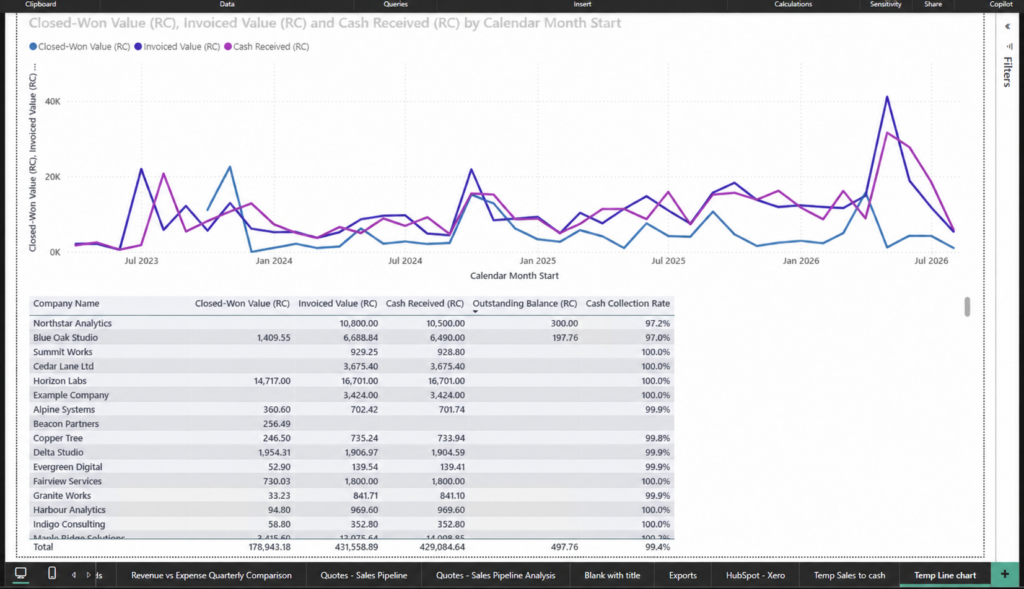
Plot the Monthly Sales-to-Cash Trend
Add a line chart with xero dates[Calendar Month Start] on the continuous X-axis. Add these measures to the Y-axis:
- Closed-Won Value (RC)
- Invoiced Value (RC)
- Cash Received (RC)
The three lines will not normally peak in the same month. A deal may be won first, invoiced later and paid later still. That timing difference is one of the most useful insights in a sales-to-cash report.
Add the Customer Follow-Up Table
Create a table containing:
- hubspot companies[Company Name]
- Closed-Won Value (RC)
- Invoiced Value (RC)
- Cash Received (RC)
- Outstanding Balance (RC)
- Cash Collection Rate
Sort the table by Outstanding Balance (RC) in descending order. This turns the dashboard from a summary into an operational tool by placing customers with unpaid balances at the top.
Add Company and Date Filters
Add a company slicer using hubspot companies[Company Name] and a Between date slicer using xero dates[Date].
The company slicer should filter all HubSpot and Xero measures through the customer-mapping bridge. The date slicer applies the appropriate event date to each stage: Closed Won Date for deals, Invoice Date for invoices and Payment Date for payments.
When reviewing the results, do not expect the three totals to be identical. Closed-won value, invoiced value and cash received describe different events, and each can fall into a different reporting period.
How to Interpret the Dashboard
A sales-to-cash dashboard is most useful when it highlights timing differences and operational exceptions rather than presenting the three stages as if they should always reconcile immediately.
Closed-Won Value Is Not Yet Revenue or Cash
A closed-won HubSpot deal records a commercial commitment. The corresponding invoice may be raised later, split across several invoices or combined with other work. Closed-won value should therefore be treated as a sales indicator rather than recognised revenue.
Invoiced Value and Cash Received Use Different Dates
Invoiced value is reported using Invoice Date, while cash received is reported using Payment Date. A customer may pay an invoice in a later month, so the two monthly lines should follow one another rather than match exactly.
This also explains why a period-based cash collection rate can exceed 100%. During that period, the business may collect payments for invoices raised earlier.
Use Outstanding Balance for Follow-Up
Sort the customer table by outstanding balance to identify the accounts requiring immediate attention. The company filter can then be used to review the complete sales-to-cash position for an individual mapped customer.
Validate the Model Before Relying on the Results
Perform these checks before sharing the dashboard:
- Select a HubSpot company and confirm that deal, invoice and payment measures all change.
- Apply a shorter date range and confirm that each measure follows its correct event date.
- Exclude forecast payments from the cash-received calculation.
- Exclude purchase invoices, drafts and forecast invoices from invoiced value.
- Check whether invoice values are held at invoice or line level before deciding how to aggregate them.
- Confirm that the reporting-currency fields are used consistently.
These checks are particularly important because a visually plausible dashboard can still be wrong if filters do not cross the customer bridge or if forecast records are included as actual transactions.
From Separate Systems to One Commercial View
Connecting HubSpot deals with Xero invoices and payments gives sales and finance teams a shared view of what has been won, what has been billed, what has been collected and what remains outstanding.
The customer-mapping bridge is the foundation of the model. Once that mapping is reliable, Power BI can follow each customer across both systems without assuming that every deal corresponds directly to one invoice.
If you still need to create the customer bridge, follow our guide to combining Xero and HubSpot data in Power BI before building this dashboard.
Connectorly provides ready-to-use Power BI connections for HubSpot and Xero, helping teams replace manual exports with refreshable reporting models and consistent commercial metrics.
Frequently Asked Questions
Can Power BI combine HubSpot and Xero data?
Yes. HubSpot deals and companies can be combined with Xero contacts, invoices and payments through a shared customer-mapping table. This allows one Power BI report to follow activity from closed-won opportunity through to invoicing and cash collection.
How do you match HubSpot companies with Xero contacts?
Create a customer-mapping bridge containing the HubSpot Company ID and Xero Contact Key for each confirmed match. Exact email and normalised company-name matching can automate many matches, while ambiguous records should be reviewed manually.
Do HubSpot deals need to match Xero invoices one-to-one?
No. One deal may produce several invoices, and one invoice may cover multiple pieces of work. Customer-level reporting is usually the most reliable starting point unless both systems contain a consistent shared order or reference number.
Why can the cash collection rate exceed 100%?
A period-based collection rate compares invoices issued during the selected period with payments received during that period. It can exceed 100% when customers pay invoices that were raised before the selected date range.
Which Xero records should be excluded?
Invoiced value should exclude purchase invoices, forecasts and drafts. Cash received should include actual authorised customer receipts while excluding forecast payments, supplier payments and credit-payment transactions.
Ready to Connect HubSpot and Xero to Power BI?
Connectorly helps you bring refreshable HubSpot and Xero data into Power BI without relying on recurring spreadsheet exports.
Explore the HubSpot and Power BI connector and the Xero and Power BI connector, or contact the Connectorly team to discuss your reporting requirements.