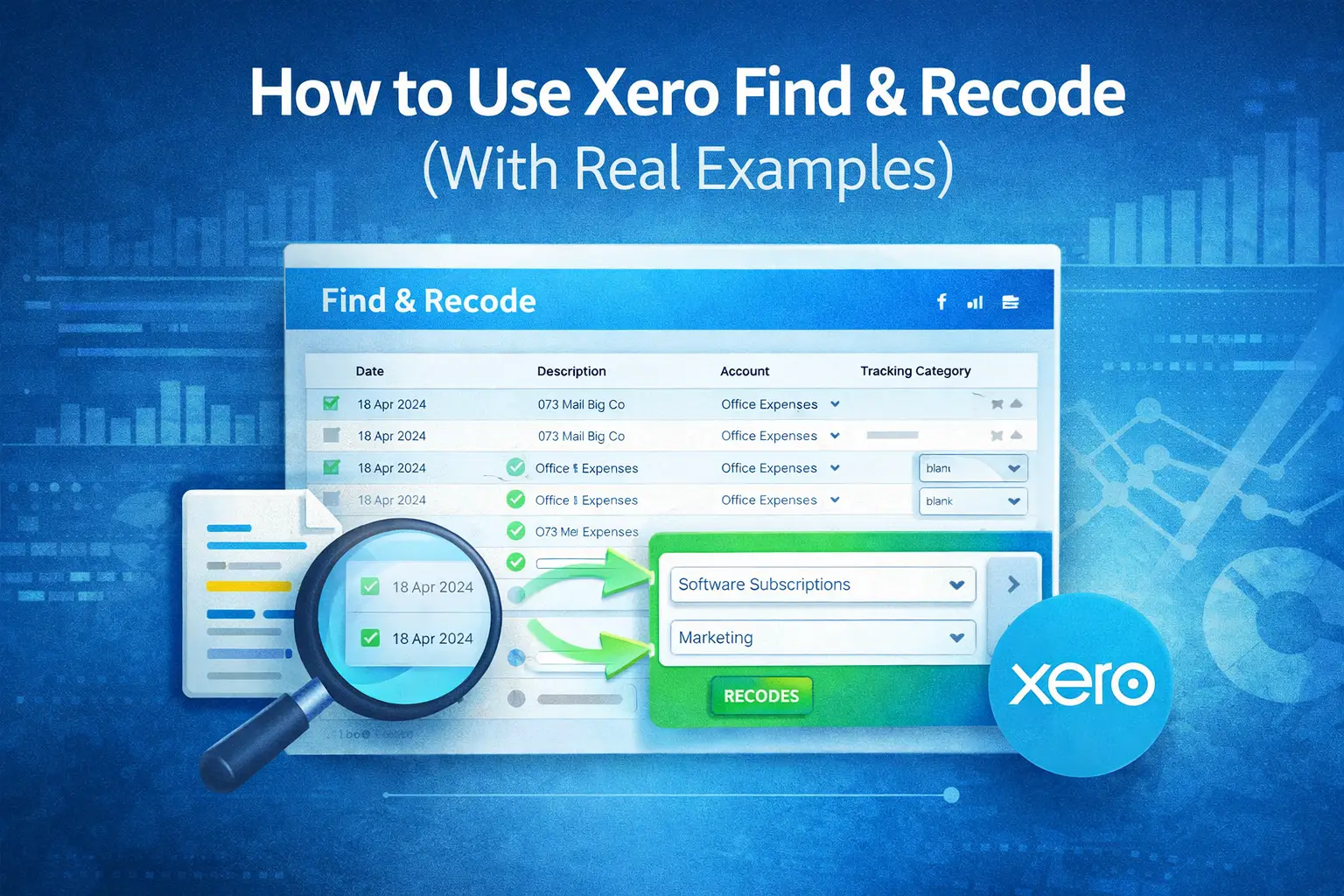
We often get questions from customers about how to clean up accounting data in Xero without spending hours editing transactions one by one. One feature that comes up regularly is Find & Recode.
If you are working with reporting tools like Power BI, getting your data right at the source is critical. Misclassified transactions, incorrect tracking categories, or wrong accounts can all lead to inaccurate reports.
Xero’s Find & Recode feature is designed to help fix these issues efficiently.
In this guide, we explain how Find & Recode works, when to use it, and walk through real examples you can apply in your own Xero environment.
What Is Xero Find & Recode and When Should You Use It?
Find & Recode is a built-in Xero feature that allows users to locate and update multiple transactions at once.
Instead of editing transactions individually, you can search for a group of transactions and apply changes in bulk. This is particularly useful when transactions have been coded incorrectly or when reporting requirements change.
Typical use cases include correcting account codes, updating tracking categories, fixing tax rates, or changing contact assignments.
Because these updates directly affect your financial data, Xero requires appropriate permissions to access and use this feature. It is generally available to users with adviser-level access.
How Do You Access Find & Recode in Xero?
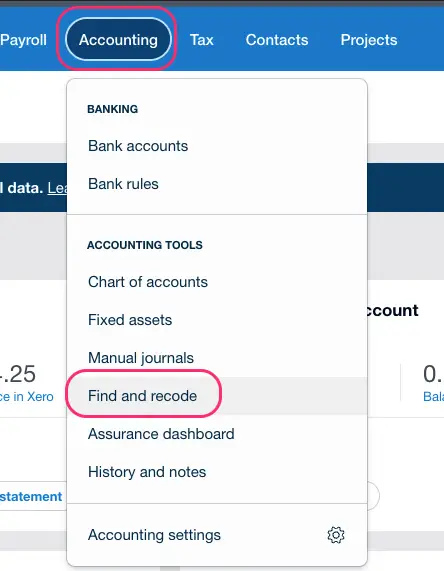
Find & Recode is accessed from within Xero’s accounting interface.
You can navigate to it through the Accounting menu, and then Find & Recode.
From there, you can choose the type of transactions you want to work with. Xero allows you to search across invoices, bills, bank transactions, and other transaction types.
The interface is designed to help you filter transactions before applying any changes, which is important to ensure accuracy.
How Does the Find & Recode Process Work?
The process consists of three main steps: finding transactions, reviewing them, and applying changes.
First, you define your search criteria. This could include filters such as account, contact, date range, tracking category, or reference.
Next, Xero displays the matching transactions. At this stage, you can review the results and select the transactions you want to update.
Finally, you choose what to recode. This could involve changing the account, updating tracking categories, or modifying tax rates.
Before applying the changes, Xero shows a summary of what will be updated. This confirmation step is important because changes are applied in bulk.
Real Example 1: Correcting an Expense Account
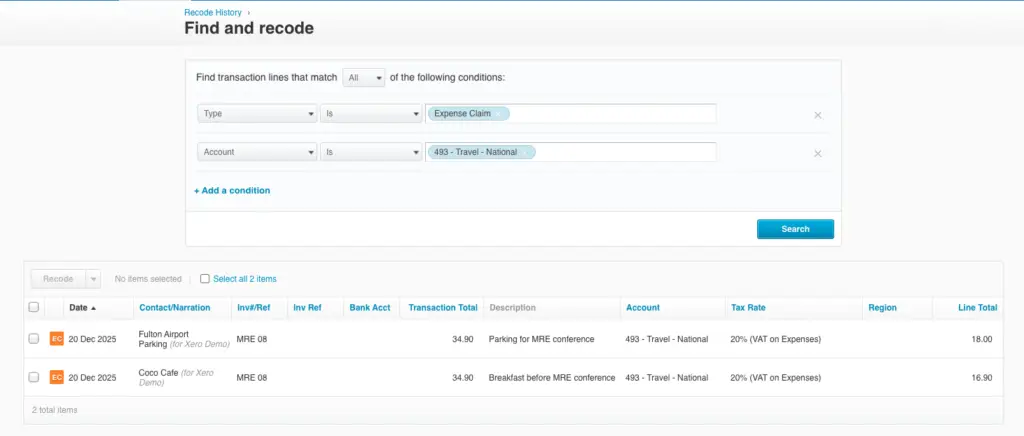
A common scenario is when expenses have been posted to the wrong account.
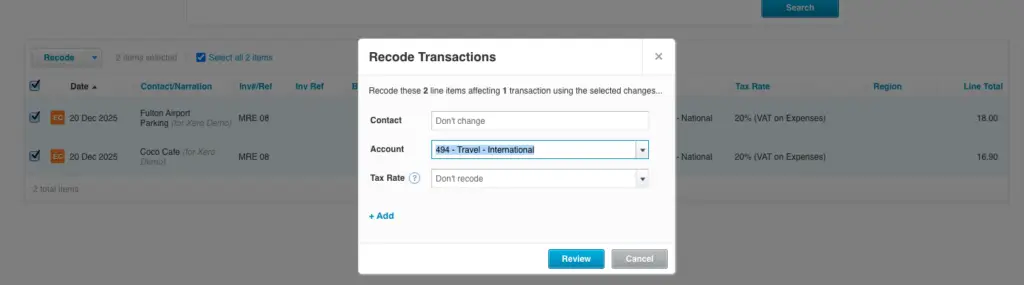
For example, imagine multiple transactions were coded to “Travel – National” instead of “Travel – International”.
Using Find & Recode, you can filter transactions by account and date range, then select the relevant entries.
You can then update the account field to “Travel – International” and apply the change.
This ensures that your Profit and Loss report reflects the correct categorisation.
Real Example 2: Fixing Tracking Categories for Reporting
Tracking categories are often used in Xero to segment financial data, such as by department, location, or project.
If transactions are missing a tracking category or have been assigned incorrectly, reporting becomes unreliable.
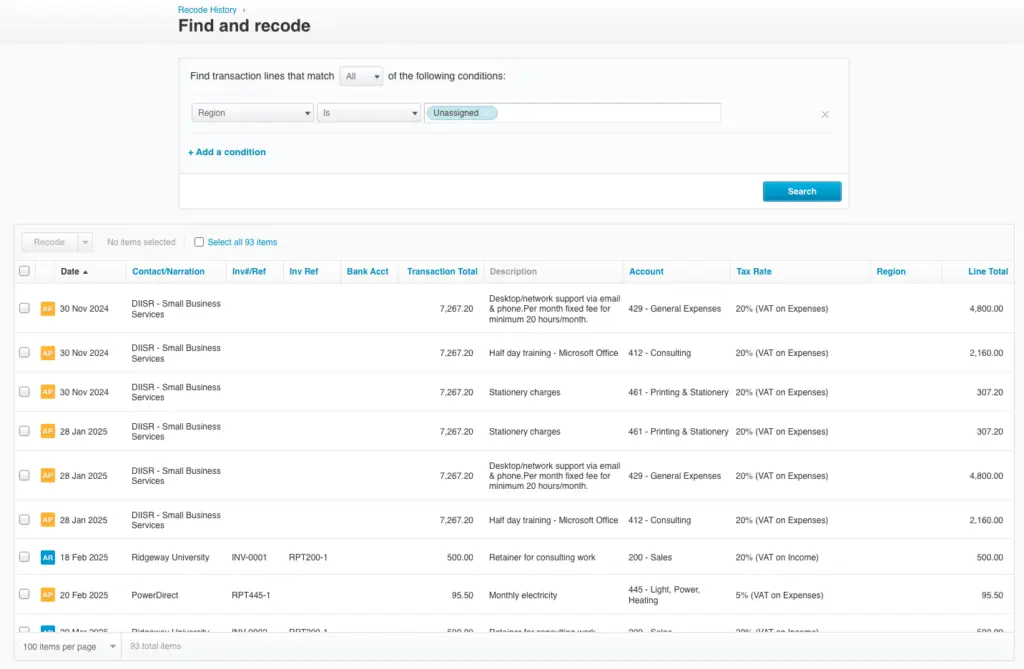
Using Find & Recode, you can filter transactions where the tracking category (in our example Region) is blank or incorrect.
You can then apply the correct tracking category across all selected transactions.
This is particularly useful when preparing data for Power BI dashboards, where consistent categorisation is essential for accurate analysis.
Real Example 3: Updating Tax Rates Across Transactions
Another common use case is correcting tax rates.
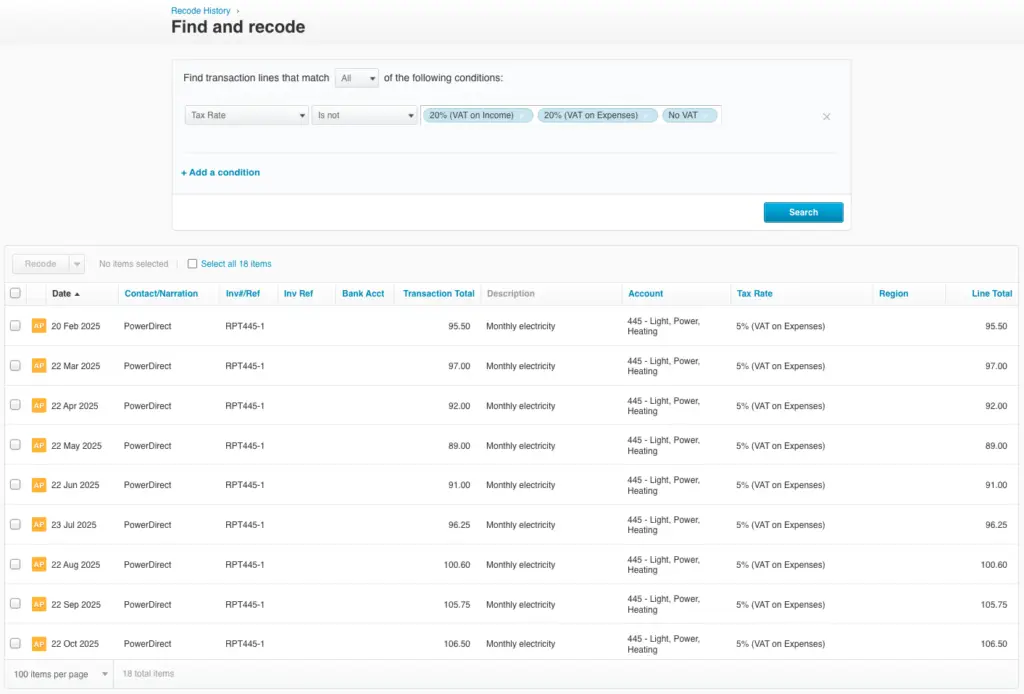
For example, if a set of transactions were entered with the wrong VAT rate, this can affect both reporting and compliance.
Find & Recode allows you to locate those transactions and update the tax rate in bulk.
This helps ensure that VAT reporting and financial statements are accurate.
How Does Find & Recode Impact Power BI Reporting?
From a reporting perspective, Find & Recode plays an important role in data quality.
Power BI reports rely on consistent and accurate data coming from Xero. If transactions are misclassified or missing key attributes, dashboards may show incorrect totals or misleading trends.
By using Find & Recode to clean up your data, you ensure that your reporting layer reflects the true financial position.
When using Connectorly, this becomes even more important. Connectorly extracts structured data from Xero and makes it available in Power BI. If the source data is clean, the reporting model becomes more reliable and easier to work with.
Our complete guide to Xero reporting in Power BI explores this complete reporting lifecycle, from preparing reliable Xero data to modelling it and building financial dashboards in Power BI.
If you are setting up your reporting environment, this guide explains how to connect Xero to Power BI
What Should You Be Careful About When Using Find & Recode?
While Find & Recode is powerful, it should be used carefully.
Changes are applied to multiple transactions at once, so it is important to review your selection before confirming.
It is also good practice to test your filters with a small set of transactions first, especially if you are working with large datasets.
Because these changes affect historical data, they will also impact financial reports and any connected reporting tools.
When Should You Use Find & Recode vs Fixing Data in Reports?
A common question we hear is whether it is better to fix data in Xero or handle adjustments in Power BI.
In most cases, correcting data at the source is the better approach. This ensures consistency across all reports, systems, and users.
Power BI can handle calculated measures and adjustments, but it should not be used to fix underlying data issues where possible.
Using Find & Recode in Xero helps maintain a clean and reliable dataset for all downstream reporting.
Final Thoughts
Xero’s Find & Recode feature is a practical tool for maintaining clean financial data.
It allows users to correct transactions efficiently, improve reporting accuracy, and reduce manual effort.
For teams using Power BI, clean data in Xero makes a significant difference. It simplifies data modelling, improves report reliability, and reduces the need for complex adjustments.
By combining Xero’s data correction tools with structured reporting through Connectorly, organisations can build more accurate and scalable reporting environments.