
Duplicate contacts are easy to create in Xero. Different users might enter the same customer under slightly different names, an import might create another contact, or someone might create a new contact before noticing that one already exists.
At first, a duplicate contact may seem like a minor housekeeping issue. But over time, it can split invoices, bills and transaction history across multiple contact records, making customer and supplier reporting harder to understand.
This becomes even more important when you use Xero data outside Xero. If you report in Power BI, combine Xero with CRM data from systems such as HubSpot, or bring finance and operational data together from multiple systems, inconsistent contact records can make matching the same customer across your data much more difficult.
Fortunately, Xero lets you merge duplicate contacts without deleting their associated transactions.
In this quick guide, we’ll look at how to identify potential duplicate contacts, how to merge them correctly in Xero, what happens to their transactions after the merge, and what you should check if you use Xero data for external reporting.
Why Duplicate Contacts Appear in Xero
Duplicate contacts in Xero usually appear when the same customer or supplier is entered more than once under slightly different names.
For example, the same business could appear as:
• ABC Manufacturing Ltd
• ABC Manufacturing
• ABC Manufacturing Limited
Or the same person could be entered as:
• Sarah Thompson
• S Thompson
• Sarah Thompson Consulting
This can happen when different users create contacts manually, when you import contacts from another system, or when an integration creates them automatically.
It is important to understand that Xero currently requires the Contact Name to be unique. This means you cannot simply create two separate contacts with exactly the same Contact Name. Instead, duplicate contacts will usually have slightly different names or spelling.
Imports can also create duplicate contacts if the contact name in the imported data does not match the existing contact in Xero. This is why consistent contact naming is particularly important when data is moving between Xero and other business systems.
How to Find Potential Duplicate Contacts in Xero
Xero does not provide a general automatic duplicate-contact finder that identifies every possible duplicate for you. In most cases, you will need to identify potential duplicates by reviewing and searching your contacts.
To check for possible duplicates:
1. In Xero, go to Contacts > All contacts.
2. Use the search box to search for the customer or supplier name.
3. Look for contacts with similar names that may represent the same person or business.
For example, searching for “ABC Manufacturing” may reveal separate contacts called “ABC Manufacturing Ltd” and “ABC Manufacturing Limited”.
Before merging anything, open the contact records and check the available details carefully. Compare information such as email addresses, phone numbers, postal addresses and the transactions associated with each contact.
Do not merge contacts simply because their names look similar. Make sure they genuinely represent the same customer or supplier first.
How to Merge Duplicate Contacts in Xero
Once you have confirmed that two or more contact records represent the same customer or supplier, you can merge them in Xero. Xero also provides official guidance on merging contacts if you need additional information.
To merge contacts:
1. In Xero, go to Contacts > All contacts.
2. Select the checkboxes next to the contacts you want to merge.
3. Click Merge.
4. Start typing the name of the contact you want to merge the selected contacts into, then select that contact.
5. Click Merge, then click Confirm merge.
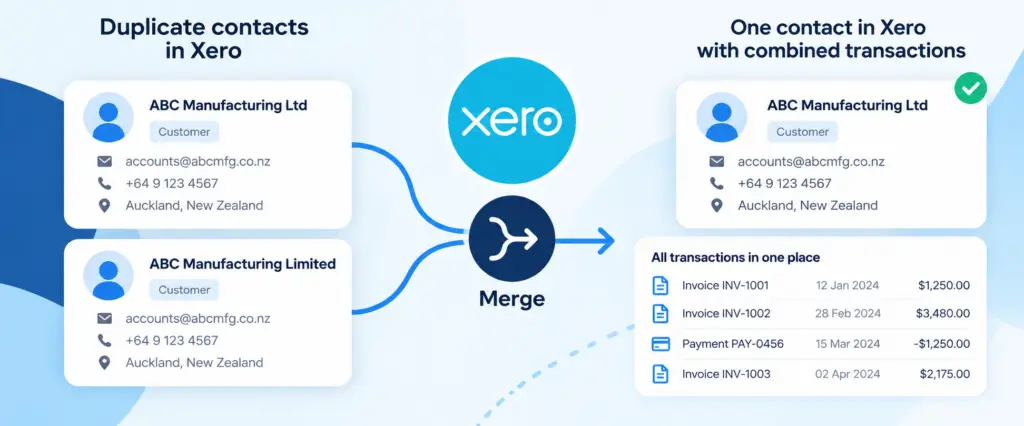
Xero archives the other contact records included in the merge and brings their transactions together under the contact you chose to keep.
Before confirming the merge, pay particular attention to which contact you choose as the main contact. Check that it has the contact name and details you want to continue using.
Xero does not provide a simple “undo” button for a completed contact merge, so check the records carefully before confirming the merge.
What Happens After You Merge Contacts in Xero?
When you merge contacts in Xero, Xero keeps your chosen contact active and archives the other contact records.
Xero does not delete the transactions associated with the merged contacts. Instead, it brings invoices, bills and other transactions from those contacts together under the contact you chose to keep.
This means that when you view the remaining contact in Xero, you can see the combined transaction history in one place.
If you use Xero Projects, there is one additional point to check. Merging contacts does not automatically update the contact assigned to an existing project. After completing a contact merge, review any relevant projects and update the assigned contact where necessary.
However, there is an important distinction between what you see in Xero and what may be returned to external reporting or integration tools.
If you use Xero data in Power BI, another reporting platform or an external integration, historical transactions may not always immediately reflect the newly merged contact relationship outside Xero.
This is particularly important if you use contact information to group, filter or analyse customers in your reports.
We will look at this reporting scenario in more detail below.
Using Merged Xero Contacts in Power BI
If you use Xero data in Power BI or another external reporting system, there is an additional point to be aware of after merging contacts.
Although Xero shows the transactions under the contact you chose to keep, the Xero API may not automatically return historical invoices with the updated contact information.
As a result, your reports may still show transactions against the old contact even after you have merged the contacts in Xero.
We have covered this specific scenario, including how to refresh the affected invoices in Xero, in our guide:
👉 Xero Merged Contacts Not Updated in Power BI – How to Fix It
If you have merged contacts and your Power BI reports still show the old customer or supplier, follow the steps in that guide before making changes to your reporting model.
Why Clean Contact Data Matters for Cross-System Reporting
Duplicate contacts become even more important when Xero is not the only source of your business data, particularly when you combine data from multiple systems for cross-system reporting.
For example, you might have customer information in HubSpot, financial transactions in Xero, and inventory or order data in another system such as Unleashed.
The same customer may be represented differently in each system:
• ABC Manufacturing Ltd in Xero
• ABC Manufacturing in HubSpot
• ABC Manufacturing Limited in Unleashed
If reporting relies only on the company name to match these records, it can be difficult to determine reliably that they all represent the same customer.
This can lead to duplicated customers, incomplete revenue figures or transactions being attributed to the wrong customer when data from multiple systems is combined.
Where possible, integrations and reporting models should therefore use stable system identifiers rather than relying solely on contact names.
Keeping your source data clean is still important. Consistent contact names, accurate contact details and removing genuine duplicates all make it easier to build reliable reporting across your business systems.
How to Reduce Duplicate Contacts in Xero
A little consistency can help prevent duplicate contacts from building up in Xero over time.
Here are a few practical habits that can help:
• Search your existing contacts before creating a new one.
• Use a consistent naming convention for businesses. For example, decide whether you normally use the registered company name, including “Ltd”, or a shorter trading name.
• When importing data into Xero, make sure existing contact names match the Contact Name already used in Xero.
• If another system or integration creates contacts in Xero, understand how it identifies an existing contact before creating a new one.
• Avoid using the contact name as the only identifier when building integrations or combining data from multiple systems.
• Periodically review similar contact names and investigate potential duplicates before they begin to affect your reporting.
These small checks can make a significant difference as your contact list grows, particularly if Xero is connected to other systems or its data is used for external reporting.
Frequently Asked Questions About Duplicate Contacts in Xero
Can you have two contacts with exactly the same name in Xero?
No. Xero currently requires the Contact Name to be unique. Two separate contacts cannot have exactly the same Contact Name. However, duplicates can still exist under slightly different names, such as “ABC Manufacturing Ltd” and “ABC Manufacturing Limited”.
Can you merge duplicate contacts in Xero?
Yes. Go to Contacts > All contacts and select the contacts you want to merge. Click Merge, then search for and select the contact you want to merge them into. Click Merge, then Confirm merge. Xero archives the merged contacts and brings their transactions together under the remaining contact.
Does merging contacts in Xero delete their transactions?
No. Merging contacts does not delete the transactions associated with the merged contacts. Their transaction history is brought together under the contact you choose to keep.
Can you undo a contact merge in Xero?
Xero does not provide a simple undo option for a completed contact merge. Check the contacts carefully and make sure you have selected the correct contact to keep before confirming the merge.
Why does Power BI still show an old Xero contact after I merge contacts?
Historical transactions returned through the Xero API may still contain the previous contact information after a contact merge. If this happens, the affected transactions may need to be refreshed in Xero before the updated contact relationship is reflected in external reporting.
Keep Your Xero Data Ready for Better Reporting
Duplicate contacts may seem like a small data-quality issue, but they can quickly make customer and supplier reporting more difficult — particularly when Xero data is combined with information from other business systems.
Regularly reviewing your contacts, using consistent naming and merging genuine duplicates can help keep your Xero data cleaner and your reporting more reliable.
This becomes even more important as businesses move beyond reporting from individual applications. Combining financial data from Xero with sales, CRM, inventory or operational data can provide a much more complete view of business performance — but the quality of that reporting depends on the quality and consistency of the underlying data.
Connectorly helps businesses bring data from systems such as Xero, HubSpot, Dynamics 365 and Unleashed into a reporting-ready data layer for Power BI and other reporting tools.
Clean source data is an important first step towards making that combined reporting accurate, reliable and genuinely useful.
Ready to Get More From Your Business Data?
Connectorly helps you bring data from Xero, HubSpot, Dynamics 365, Unleashed and other business systems together for reliable reporting.
Whether you need better Power BI reporting from a single system or want to combine finance, sales and operational data, we can help you build a clearer view of your business.
Talk to Us About Your Reporting