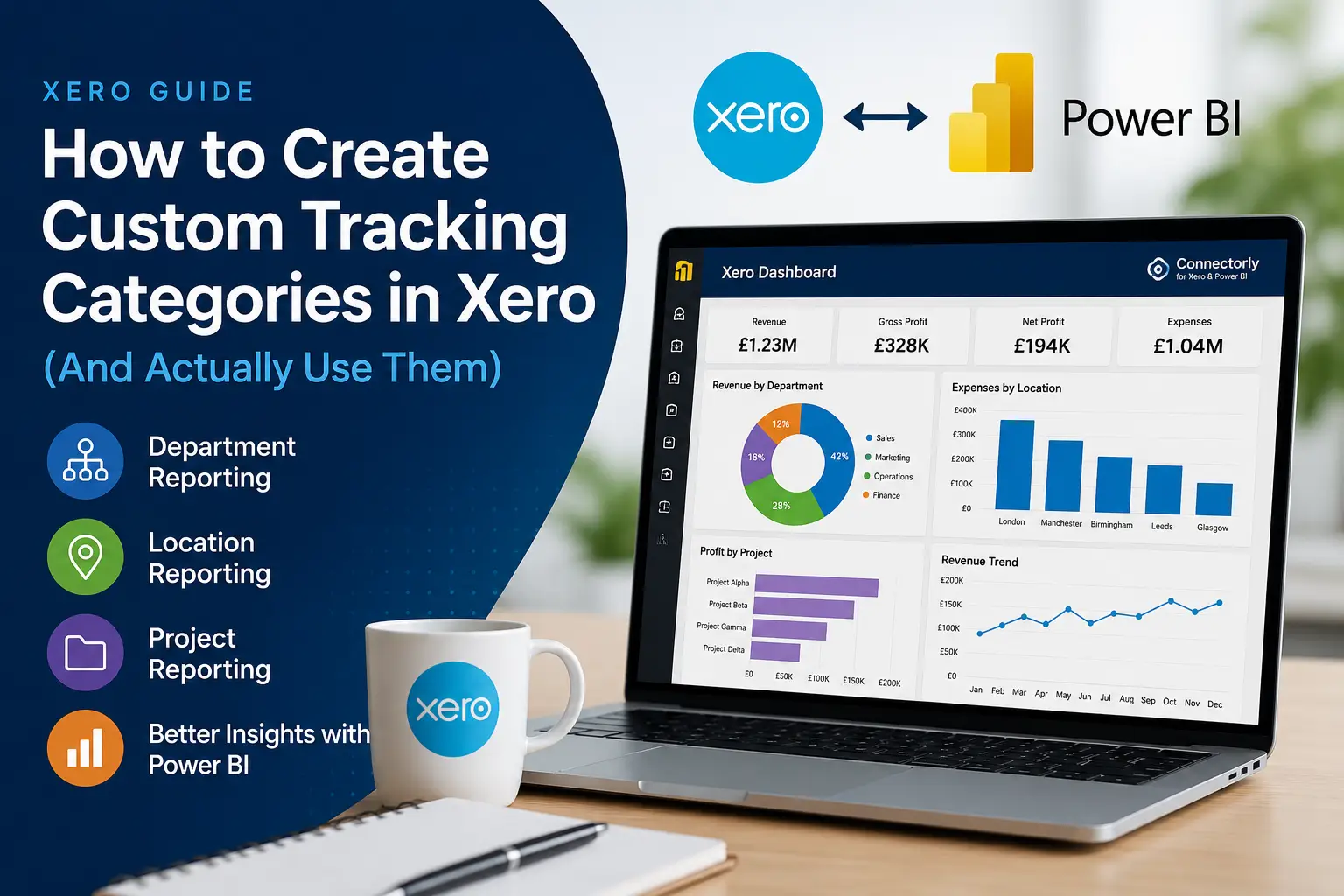
Many of our customers ask us the same question: “We’ve created tracking categories in Xero, but now what?”
Tracking categories are one of the most useful features in Xero for businesses that want more detailed reporting without creating a complicated chart of accounts. However, many organisations set them up and never fully use them, which means they miss valuable insights about departments, locations, projects, and business performance.
In this guide, we’ll explain how to create custom tracking categories in Xero, how to use them effectively, common mistakes to avoid, and how to take your reporting further with Power BI and Connectorly.
What Are Tracking Categories in Xero?
Tracking categories allow you to add an extra layer of reporting to your transactions in Xero.
Instead of only reporting by account code, you can also analyse financial data by dimensions that matter to your business. For example, you might want to understand profitability by department, office location, project, or business unit.
When you apply tracking categories to invoices, bills, expenses, and journals, Xero can produce reports that break down performance across those categories.
This makes tracking categories particularly useful for growing businesses that need more visibility without increasing the complexity of their accounting structure.
How Do You Create Tracking Categories in Xero?
Creating tracking categories in Xero is straightforward.
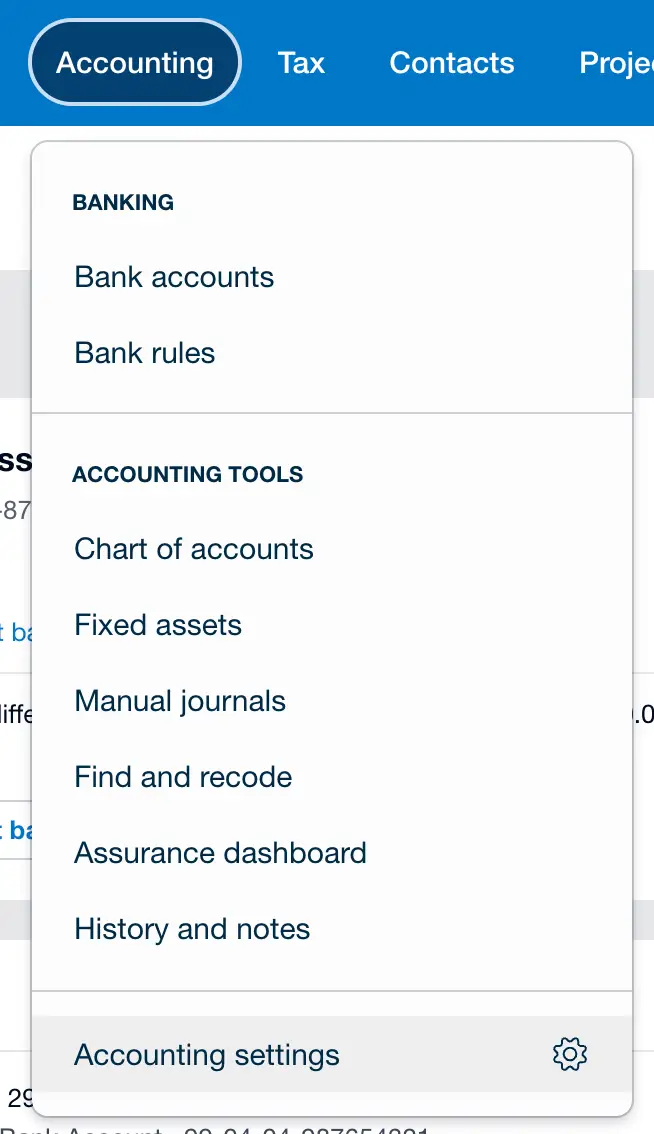
Navigate to Accounting > Accounting Settings > Tracking Categories within Xero. From there, create a category and define the options you want to track.
For example, a business with multiple offices might create a category called “Location” with options such as:
- London
- Manchester
- Birmingham
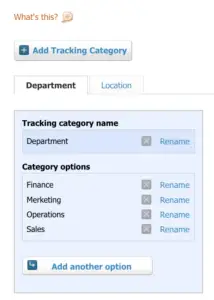
Another organisation might create a category called “Department” with options such as:
- Sales
- Marketing
- Operations
- Finance
Once created, users can assign these tracking options to transactions throughout Xero.
The key is choosing categories that will genuinely support decision-making and reporting rather than creating categories simply because the functionality exists.
How Can Tracking Categories Improve Department Reporting?
One of the most common uses of tracking categories is departmental reporting.
Without tracking categories, a Profit and Loss report shows overall company performance. With department tracking enabled, businesses can compare revenue and costs across individual teams.
For example, a company may want to understand:
- Which department generates the highest revenue
- Which department has the highest operating costs
- How departmental profitability changes over time
This information can support budgeting, resource allocation, and performance reviews.
Many accountants use tracking categories to provide management accounts with greater detail while maintaining a clean chart of accounts structure.
Can You Use Tracking Categories for Multiple Locations?
Yes.
Businesses operating across multiple offices, stores, regions, or countries frequently use tracking categories to analyse performance by location.
For example, a retail company could track:
- Sales by branch
- Expenses by store
- Profitability by region
Location-based reporting becomes particularly valuable when comparing operational performance across different sites.
Rather than maintaining separate Xero organisations, businesses can often manage location reporting through tracking categories while keeping financial data consolidated.
Are Tracking Categories Useful for Project Reporting?
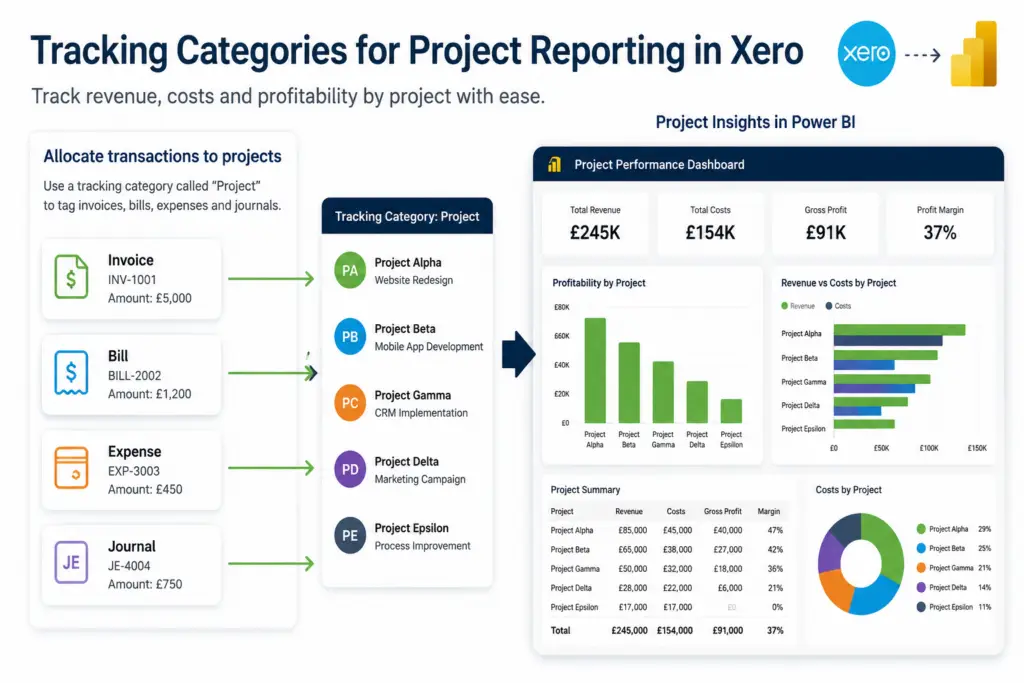
Tracking categories can also support project-based reporting.
Businesses that deliver client projects, consultancy work, or implementation services often use tracking options to allocate revenue and expenses to specific projects.
This makes it easier to monitor:
- Project profitability
- Revenue generated per project
- Project-related costs
- Resource utilisation
However, businesses with a large number of active projects should carefully consider their reporting requirements, as tracking category options require ongoing maintenance and management.
Common Tracking Category Mistakes to Avoid
The most common issue we see is inconsistency.
Tracking categories only provide useful reporting when users apply them consistently across transactions.
Some common mistakes include:
- Missing tracking assignments on invoices or bills
- Creating too many tracking options
- Using unclear naming conventions
- Reporting on tracking categories that are not actively maintained
Another common problem is expecting tracking categories to provide advanced business intelligence reporting.
While Xero reports can analyse tracking categories effectively, they have limitations when businesses want to combine financial data with CRM, operational, or forecasting information.
This is where Power BI becomes particularly valuable.
How Can You Report on Xero Tracking Categories in Power BI?
Many businesses eventually reach a point where standard Xero reports are no longer enough.
Our complete guide to Xero reporting in Power BI explains when native Xero reporting is sufficient, when Power BI becomes valuable, and how tracking categories fit into a broader financial reporting model.
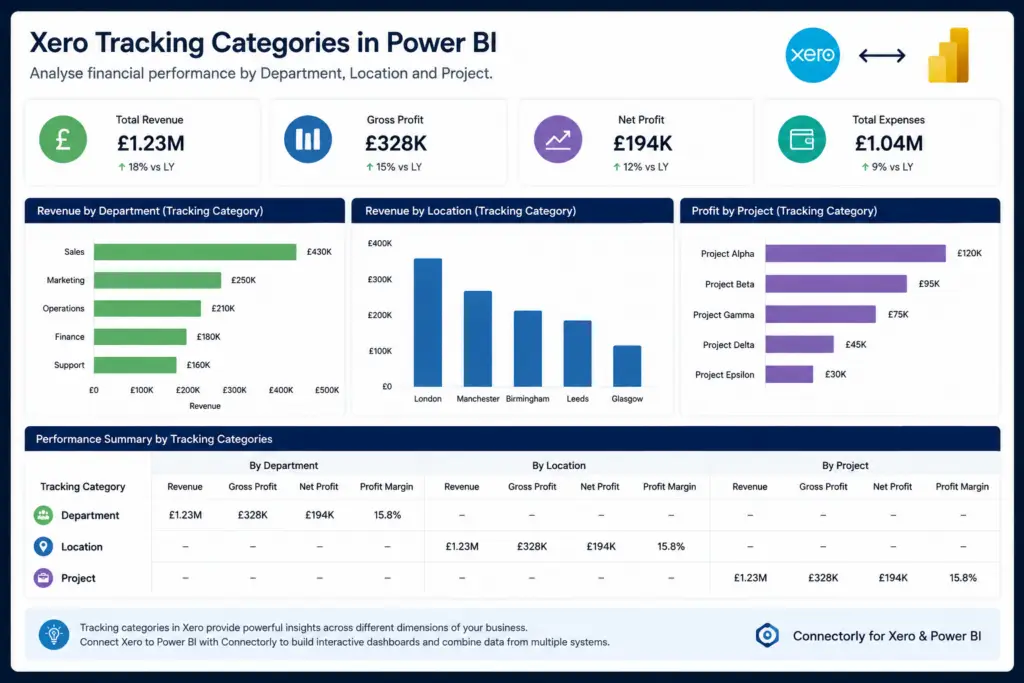
Power BI allows organisations to build interactive dashboards using Xero data, including tracking category information.
For example, businesses can create dashboards that show:
- Department profitability trends
- Revenue by location
- Project performance over time
- Cash flow by business unit
- Budget versus actual analysis
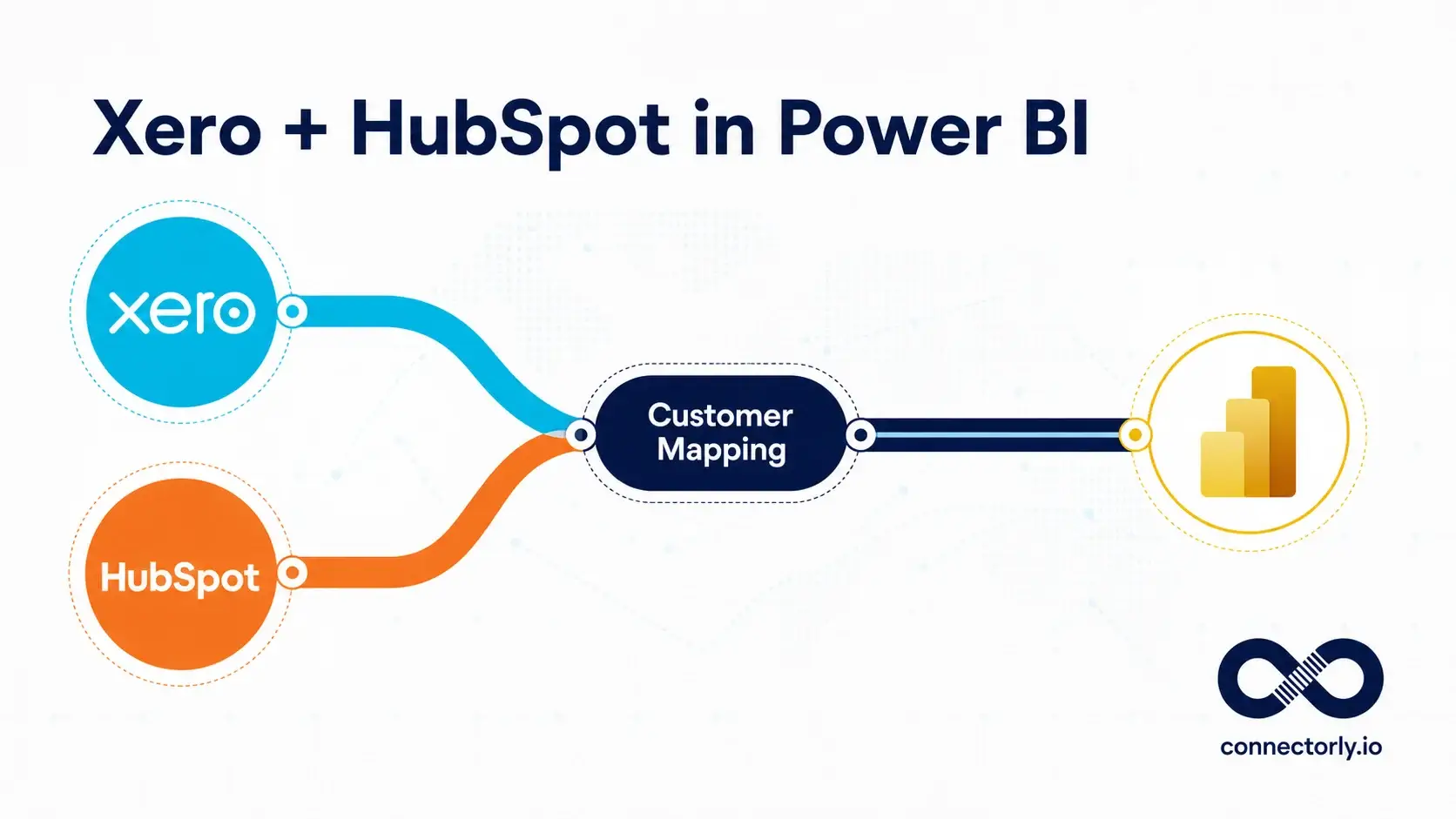
Using Power BI also makes it easier to combine Xero data with information from other systems, such as HubSpot, Microsoft Dynamics 365, spreadsheets, and operational databases.
If you’re looking to connect Xero and Power BI, our guide explains the process in detail:
How To Connect Xero to Power BI Desktop and Start Reporting in Minutes
How Connectorly Helps Connect Xero and Power BI
Connectorly provides a simple way to connect Xero data directly to Microsoft Power BI.
Rather than building and maintaining a custom integration, businesses can use Connectorly to access Xero data within Power BI and start building reports quickly.
You can learn more about Connectorly for Xero and Power BI here:
https://help.connectorly.io/en/articles/8517292-what-is-connectorly-for-xero-and-power-bi
For setup instructions, follow our step-by-step guide:
https://help.connectorly.io/en/articles/8092459-setup-connectorly-for-xero-and-microsoft-power-bi
We also provide free Power BI templates for Xero that help businesses get started faster:
https://connectorly.io/data-templates/xero-templates-power-bi/
These templates include ready-made dashboard layouts that can be customised to suit your reporting requirements.
Taking Tracking Category Reporting Further
Tracking categories are an excellent starting point for businesses that want more detailed financial reporting in Xero.
They allow you to analyse performance by department, location, project, and other business dimensions without adding complexity to your accounting structure.
As reporting requirements grow, many organisations choose to extend those insights using Power BI. Combining Xero tracking categories with interactive dashboards can provide a much clearer view of business performance and support better decision-making.
Recommended Reading
- Connect Xero to Power BI in Minutes: https://connectorly.io/blog/connect-xero-to-power-bi-in-minutes/
- What is Connectorly for Xero and Power BI?: https://help.connectorly.io/en/articles/8517292-what-is-connectorly-for-xero-and-power-bi
- Setup Connectorly for Xero and Microsoft Power BI: https://help.connectorly.io/en/articles/8092459-setup-connectorly-for-xero-and-microsoft-power-bi
- Free Xero Power BI Templates: https://connectorly.io/data-templates/xero-templates-power-bi/
- Connectorly for HubSpot & Power BI: https://connectorly.io/hubspot-power-bi/
- Connectorly for Xero & Power BI: https://connectorly.io/xero-power-bi/
- How To Build A Cash Flow Dashboard In Power BI: https://connectorly.io/blog/cash-flow-dashboard-power-bi/