
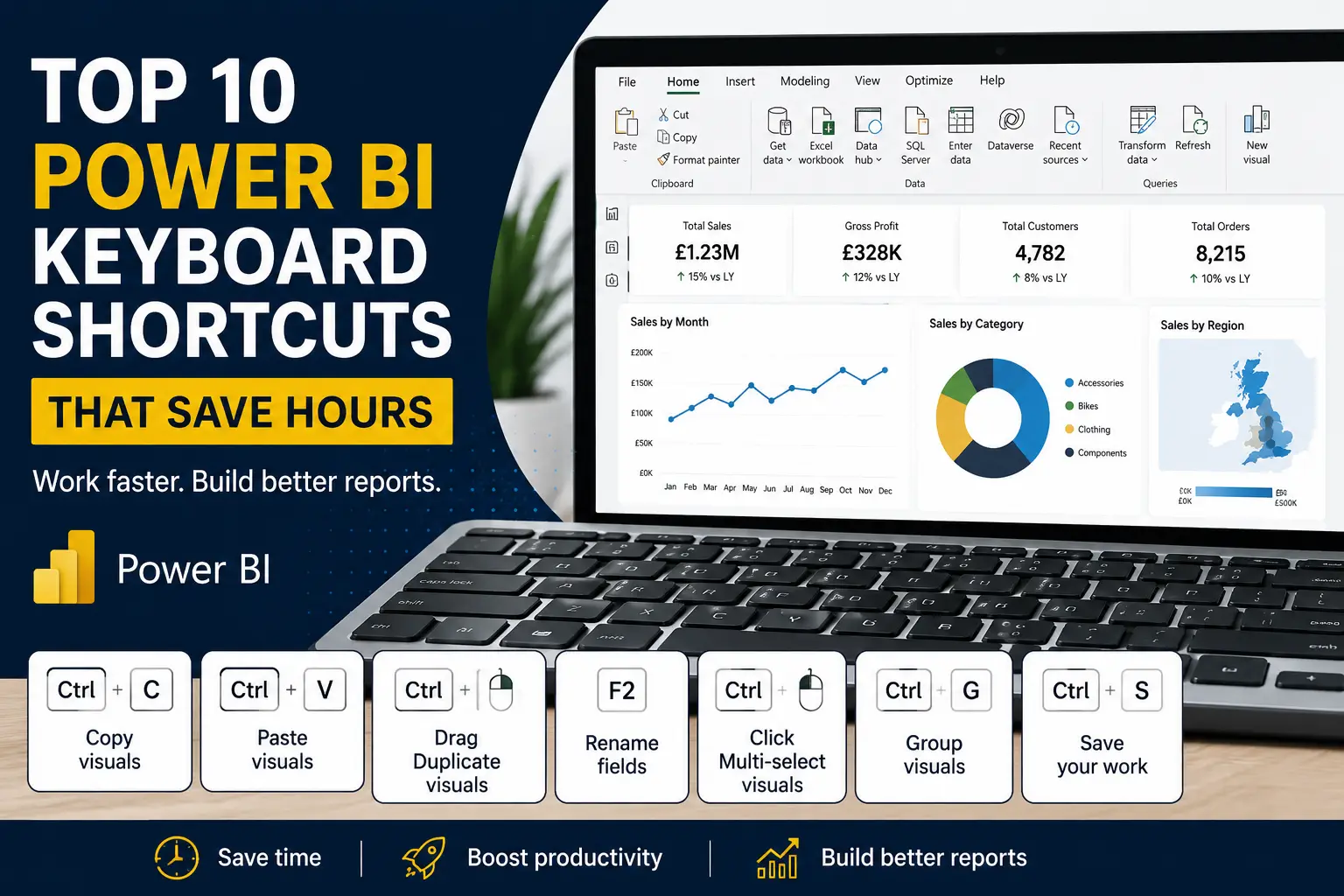
If you’ve recently started working with Power BI, you’re probably spending most of your time building visuals, creating measures, and exploring data. What many beginners don’t realise is that a few simple keyboard shortcuts can save a surprising amount of time every week.
At Connectorly, we regularly work with Power BI developers, analysts, accountants, and business users who build reports using data from Xero, HubSpot, Microsoft 365, and other business systems. One of the easiest ways to improve productivity in Power BI is to learn the shortcuts you’ll use every day.
In this guide, we’ll cover ten Power BI keyboard shortcuts that can help you work faster and spend less time clicking through menus.
Why Learn Power BI Keyboard Shortcuts?
Power BI is designed to be user-friendly, but many common tasks require repeated clicks and navigation.
When you’re building reports, adjusting visuals, formatting dashboards, or creating data models, small efficiency improvements add up quickly. Keyboard shortcuts help reduce repetitive actions and allow you to focus on analysis rather than navigation.
For beginners, learning just a handful of shortcuts can significantly improve day-to-day report development.
1. Ctrl + C and Ctrl + V – Copy and Paste Visuals
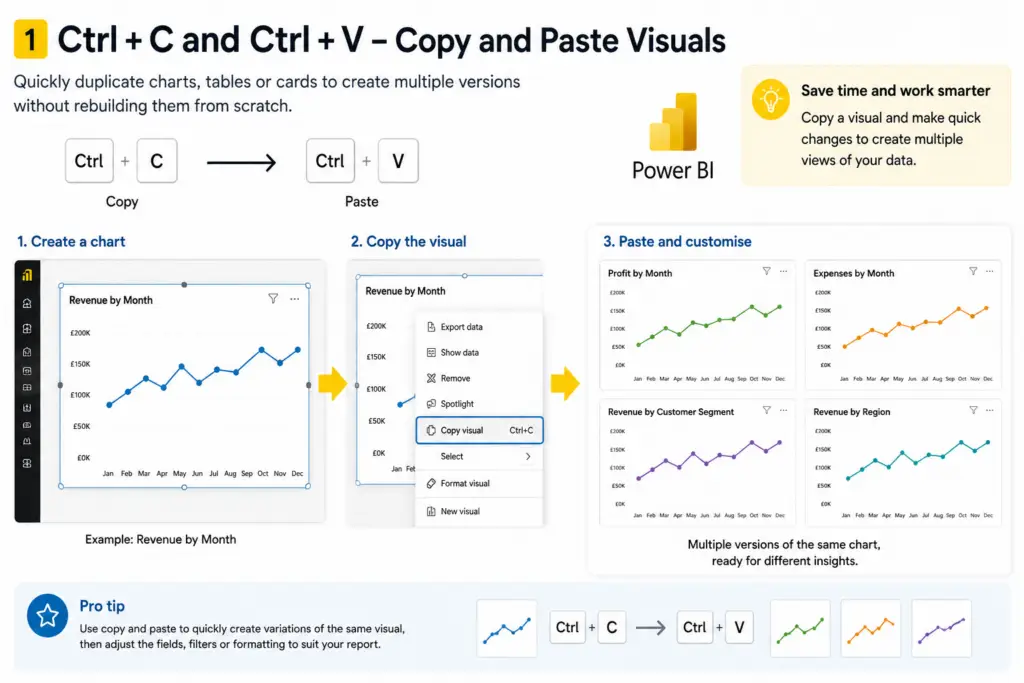
One of the most frequently used shortcuts in Power BI Desktop is copying and pasting visuals.
Rather than rebuilding charts, tables, or cards from scratch, you can select a visual and use:
Ctrl + C to copy
Ctrl + V to paste
This is particularly useful when creating multiple versions of the same chart with different filters or formatting.
For example, if you’ve created a revenue chart, you can duplicate it and quickly change it to display profit, expenses, or customer performance.
2. Ctrl + Z and Ctrl + Y – Undo and Redo Changes
Report development often involves experimentation.
You might change formatting, adjust filters, move visuals, or update fields and then decide the previous version worked better.
Use:
- Ctrl + Z to undo
- Ctrl + Y to redo
These shortcuts allow you to work more confidently and make changes without worrying about losing previous work.
Many Power BI developers use these shortcuts dozens of times during a typical report-building session.
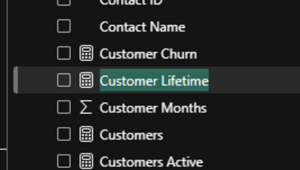
3. F2 – Rename Fields and Measures
As your Power BI model grows, maintaining clear naming becomes increasingly important.
Pressing F2 allows you to rename:
- Tables
- Columns
- Measures
Clear naming improves report maintenance and makes future development significantly easier.
This is especially valuable when working with imported data from systems such as Xero or HubSpot.
4. Ctrl + Click – Multi-Select Visuals
Building report layouts often requires moving several visuals at the same time.
Holding Ctrl while selecting visuals allows you to create a multi-selection.
Once selected, you can:
- Move visuals together
- Resize multiple objects
- Align charts more easily
- Create cleaner dashboard layouts
This can save a significant amount of time when designing reports.
5. Ctrl + G – Group Visuals and Objects
When you’ve selected multiple objects, Ctrl + G allows you to group them together.
Grouping is useful when working with:
- Titles
- Shapes
- Icons
- Buttons
- Navigation elements
Grouped objects remain aligned and can be moved as a single component.
For interactive reports with multiple navigation elements, this shortcut can make dashboard maintenance much easier.
6. Ctrl + Shift + G – Ungroup Objects
The opposite of grouping is equally useful.
Ctrl + Shift + G removes a group and allows you to edit individual objects again.
Many report developers regularly switch between grouped and ungrouped layouts while refining dashboard designs.
7. Ctrl + A – Select All Objects on a Page
Need to move or review everything on a report page?
Ctrl + A selects all available objects on the current page.
This is particularly useful when:
- Adjusting page layouts
- Reviewing visual placement
- Copying dashboard layouts
- Making bulk formatting changes
For complex dashboards, this shortcut can save considerable time.
8. Tab and Shift + Tab – Navigate Between Visuals
When reviewing reports, the Tab key allows you to move between visuals without using a mouse.
Shift + Tab moves in reverse order.
This is particularly useful when:
- Testing report navigation
- Reviewing accessibility
- Checking visual interactions
- Validating dashboard layouts
Keyboard navigation also helps improve report usability for end users.
9. Ctrl + Mouse Wheel – Zoom In and Out
Large report pages can be difficult to work with.
Holding Ctrl while using the mouse wheel allows you to zoom in and out quickly.
This helps when:
- Working on detailed dashboard layouts
- Adjusting small visual elements
- Reviewing overall page design
- Optimising report spacing
Many developers use this shortcut throughout the day.
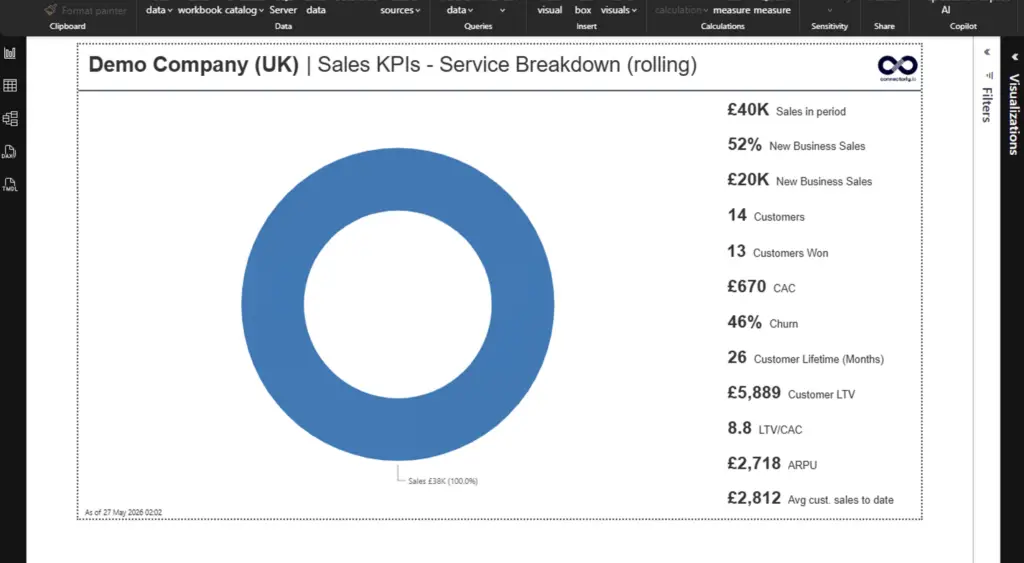
10. Ctrl + S – Save Your Work
This may seem obvious, but it remains one of the most valuable shortcuts in Power BI Desktop.
Power BI projects often involve complex models, DAX measures, relationships, and report designs.
Saving regularly helps protect your work and reduces the risk of losing changes.
Most experienced Power BI developers instinctively use Ctrl + S throughout the day.
Which Power BI Shortcuts Are Most Useful for Beginners?
For new users, four shortcuts tend to deliver the biggest productivity gains:
- Ctrl + C / Ctrl + V for copying visuals
- Ctrl + Z / Ctrl + Y for undoing and redoing changes
- F2 for renaming fields and measures
- Ctrl + Click for multi-selecting visuals
These shortcuts support common tasks you’ll perform every time you build a report.
As you become more comfortable with Power BI, additional shortcuts will naturally become part of your workflow.
Can Keyboard Shortcuts Improve Power BI Development Productivity?
While keyboard shortcuts won’t replace good report design practices, they can reduce repetitive tasks and make report development more efficient.
When you’re working on dashboards that contain multiple pages, visuals, measures, and formatting elements, even saving a few seconds per task quickly adds up.
This becomes particularly important for consultants, analysts, accountants, and developers who spend several hours each week building and maintaining reports.
How Connectorly Helps You Build Better Power BI Reports
Keyboard shortcuts help you work faster, but high-quality reports also depend on reliable data.
Connectorly helps businesses connect platforms such as Xero, HubSpot, and Microsoft 365 directly to Power BI.
Instead of manually exporting spreadsheets and maintaining complex integrations, Connectorly provides a streamlined way to access business data for reporting and analysis.
Learn more about our solutions:
Connectorly for Xero & Power BI
https://connectorly.io/xero-power-bi/
Connect Xero directly to Power BI and build financial dashboards without manual exports.
Connectorly for HubSpot & Power BI
https://connectorly.io/hubspot-power-bi/
Bring HubSpot CRM sales data into Power BI for deeper reporting.
We also provide free Power BI templates to help you get started faster:
Easy Power BI Templates for Xero
Recommended Power BI Resources
If you’re looking to improve your Power BI skills further, these guides may help:
Connect Xero to Power BI in Minutes
How To Connect Xero to Power BI Desktop and Start Reporting in Minutes
Split and Merge Fields in Power BI
How to Split and Merge Fields in Power BI
Export Power BI to Excel
How to Export Power BI to Excel (3 easy way)
Xero Dashboards in Power BI
How to Build Dashboards from Xero in Power BI
How To Build A Cash Flow Dashboard In Power BI:
Final Thoughts
Power BI keyboard shortcuts won’t completely change how you build reports, but they can save valuable time every day.
Whether you’re copying visuals, renaming measures, selecting multiple objects, or navigating dashboards, these shortcuts help reduce repetitive tasks and improve efficiency.
For beginners, learning a few shortcuts now can make report development faster and more enjoyable as your Power BI skills grow.
The best approach is to start with a handful of shortcuts that support your daily workflow and gradually build them into your routine. Over time, you’ll spend less time navigating menus and more time focusing on what matters most: delivering useful insights from your data.
Frequently Asked Questions
What are the most useful Power BI keyboard shortcuts?
The most useful Power BI keyboard shortcuts include Ctrl+C and Ctrl+V for copying visuals, Ctrl+Z and Ctrl+Y for undoing and redoing changes, F2 for renaming fields, and Ctrl+S for saving reports.
Can keyboard shortcuts improve Power BI productivity?
Yes. Keyboard shortcuts reduce repetitive tasks and help users navigate Power BI Desktop more efficiently, which can save time during report development.
How do I copy a visual in Power BI?
Select the visual and press Ctrl+C to copy it, then Ctrl+V to paste a duplicate version onto the report page.
Are Power BI keyboard shortcuts useful for beginners?
Absolutely. Learning a few common shortcuts can help beginners build reports faster and become more efficient when working in Power BI Desktop.
Does Connectorly work with Power BI?
Yes. Connectorly helps businesses connect Xero, HubSpot, Microsoft 365 and other systems data directly to Power BI for reporting and dashboard creation.
If you need help to start with Power BI, our Onboarding is designed for you.